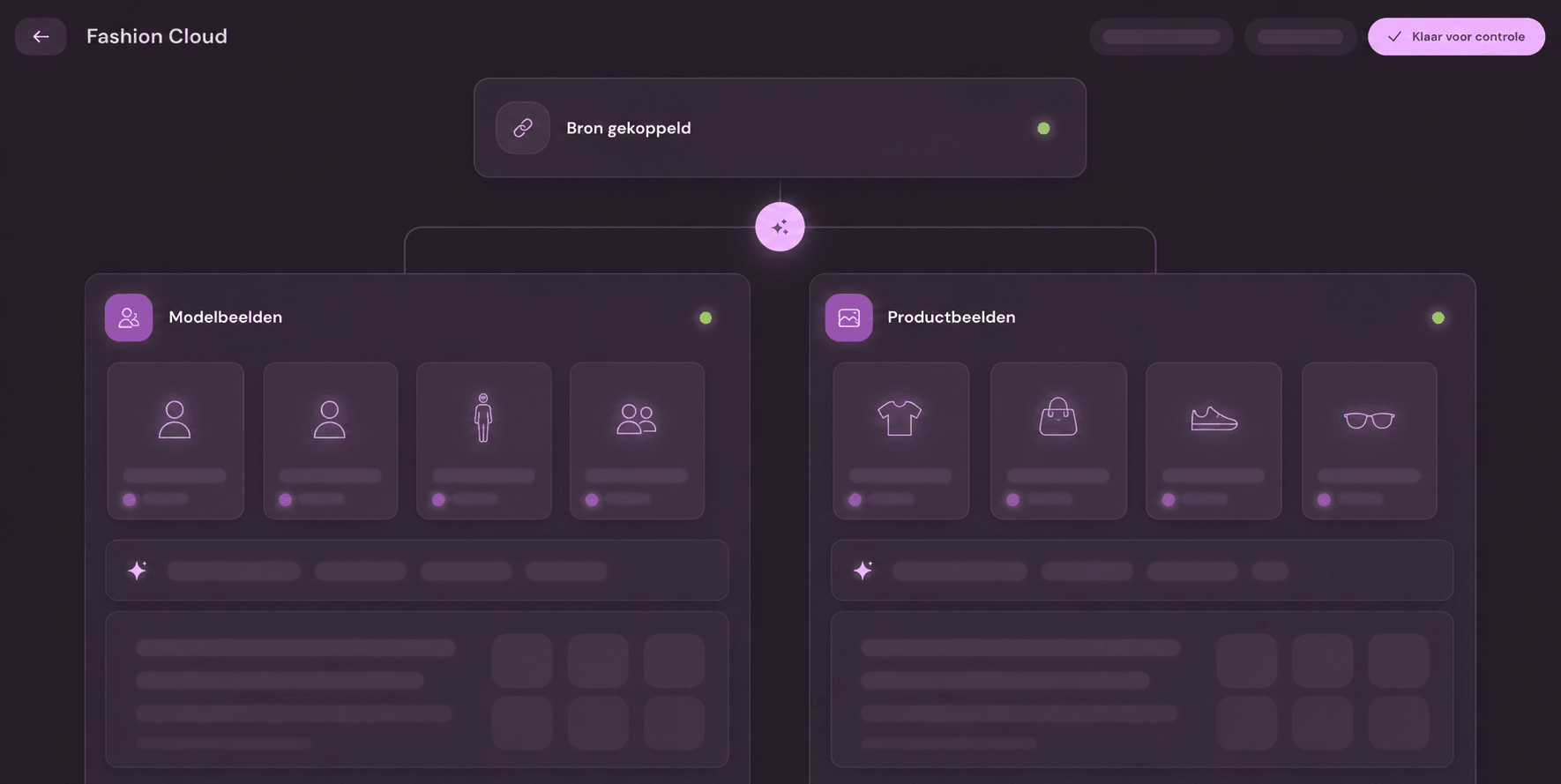
Remove mannequins, crop images, and publish automatically in your own style. Review remains optional per brand or collection.
Define once how your packshots should look. Each photo then follows the same quality rules, whether from your own studio or a supplier. For each brand or collection, choose what publishes automatically; only exceptions you deliberately want to review remain visible to your team.
You see which steps are active, which rules apply per image type, and what is ultimately published. Standard edits do not cost extra credits within the monthly plan; only generative AI is charged per image.
Photopilot01
Settings
Set image rules once
Split model and packshot photography and determine per route background, shadow, template, color correction, cropping, and exceptions. New images then automatically follow the same standard.
Photopilot02
Daily review
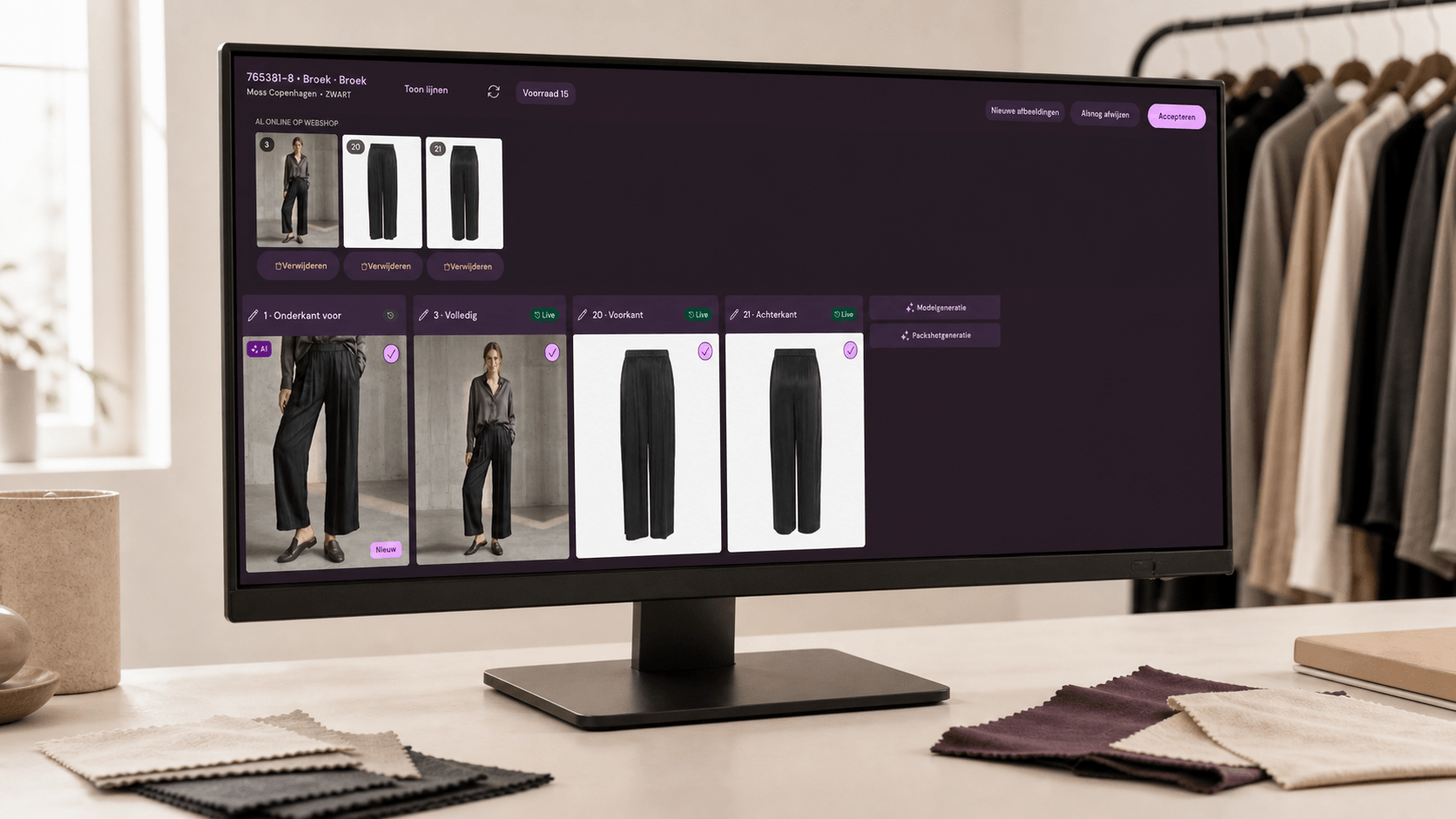
Source image and results side by side
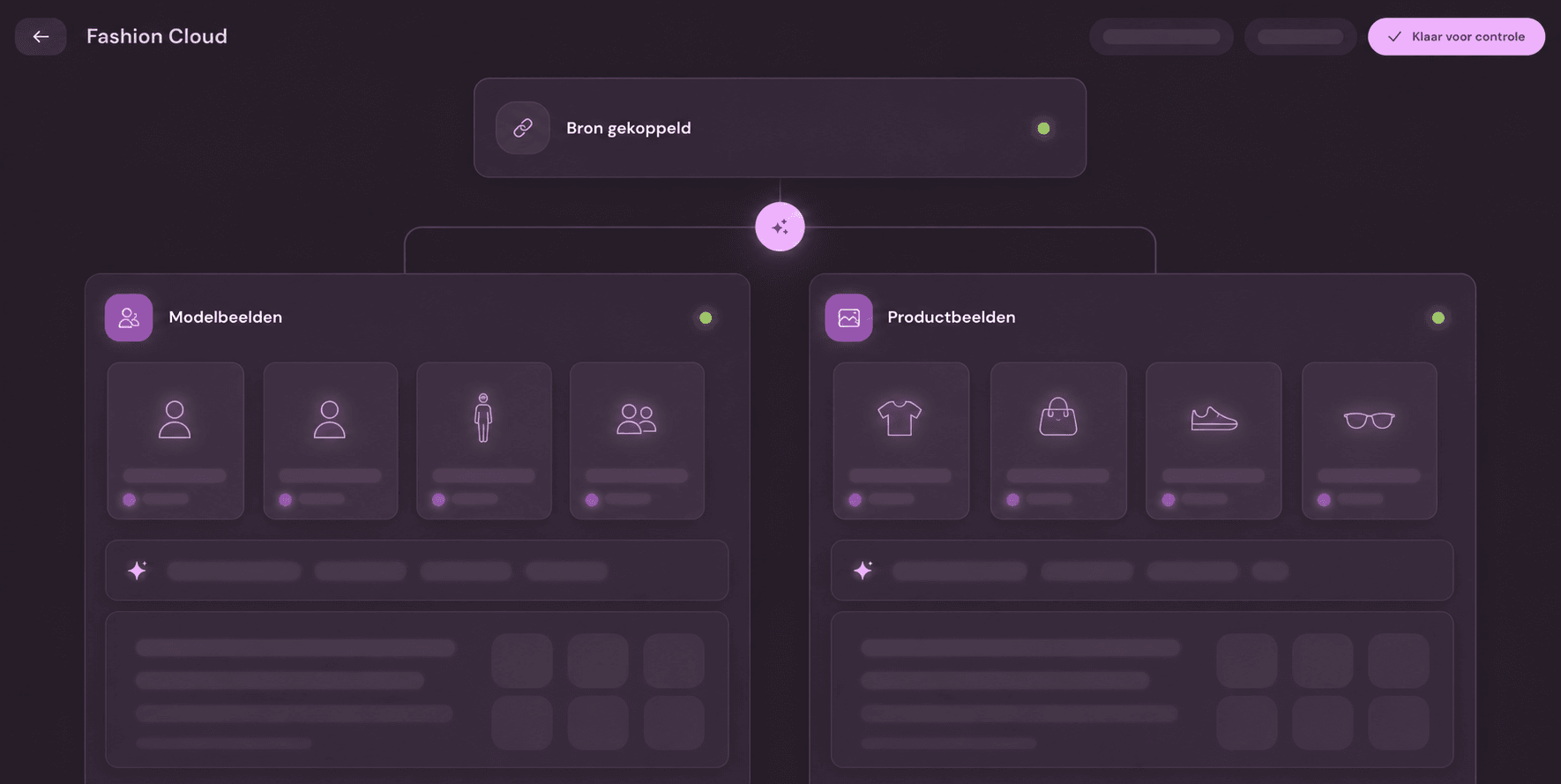
In the production interface, the source image, model image, front view and back view appear side by side. Let trusted brands and collections flow through automatically; only exceptions need attention.
AI image generation
Choose per AI packshot for speed, price, or maximum quality
Photopilot works with a wide range of carefully selected image models. This means you are not tied to one model: large volumes can follow a cost-effective automatic route, while hero and detail images can follow a more precise route.
Most image edits do not cost extra credits Cropping, grid alignment, standard background removal, pipeline shadow, color correction, formats and export are included in the monthly plan.
Generative AI only · via the background queue€0,05 per AI image
Background queue €0.05 per AI image · direct processing from around €0.12
Fast & cost-effective For large volumes via batch processing in the background.Balanced For daily collection images with extra quality space.Maximum precision For hero images, complex fabrics, and important details.
We continue to select the most suitable image models; you only choose the desired balance between speed, price, and quality.
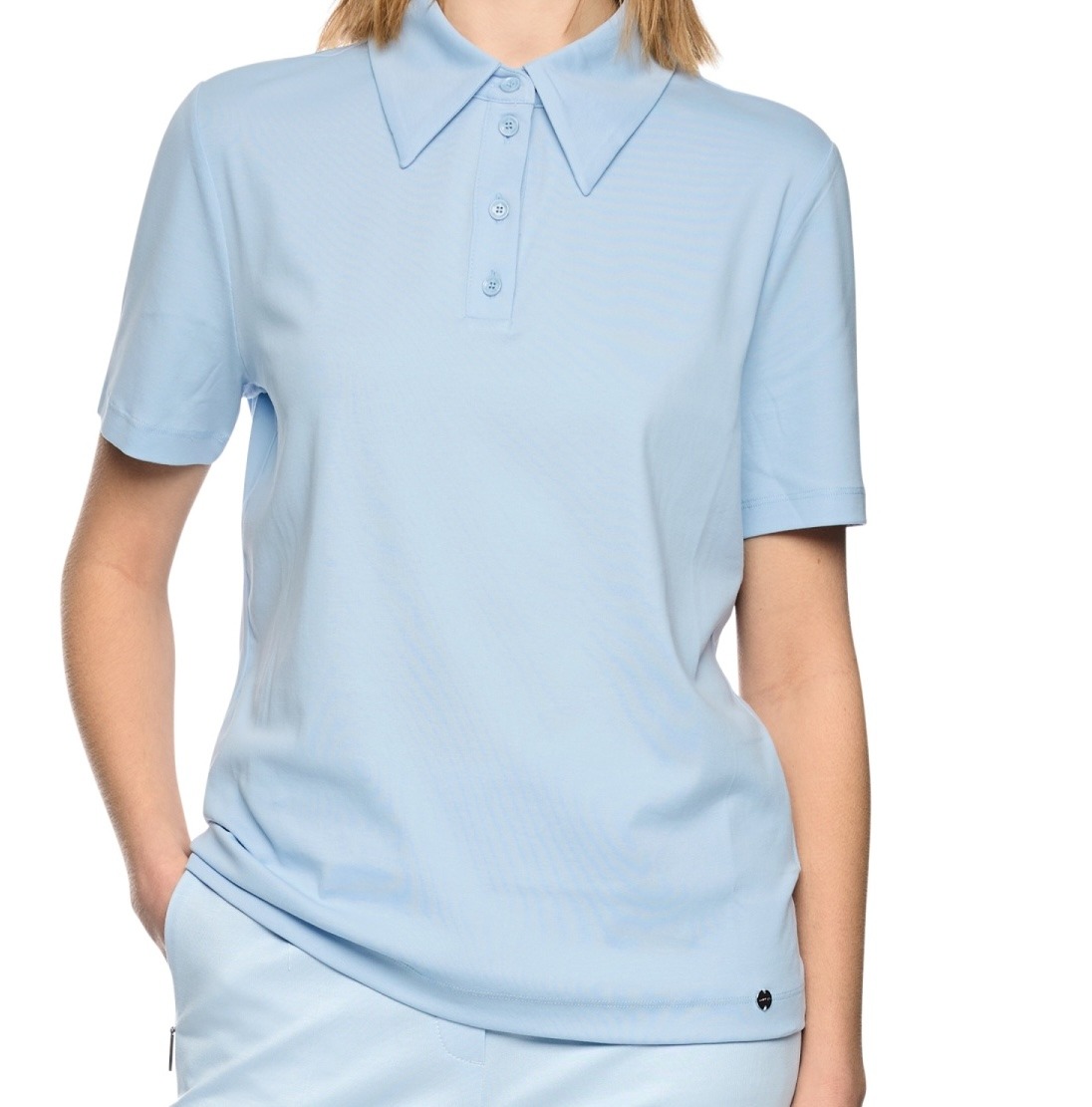
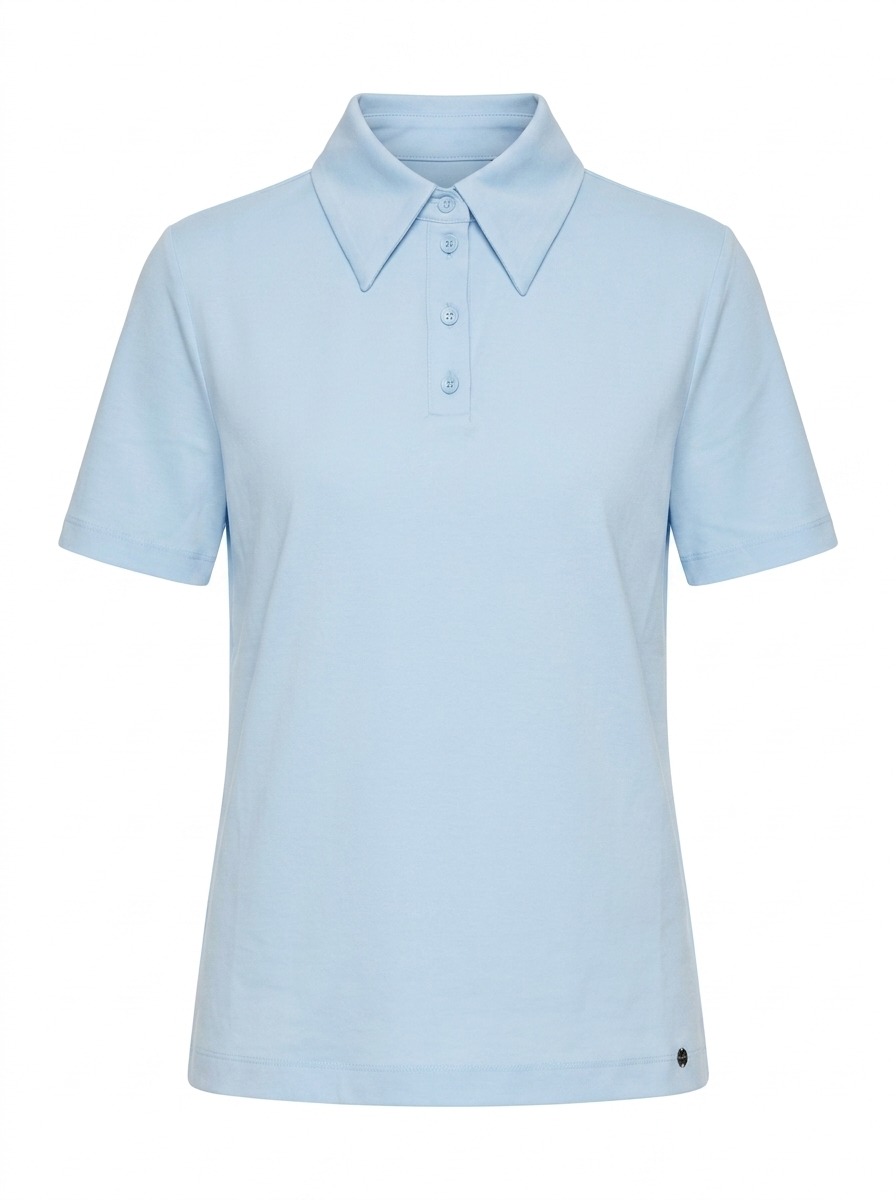
Before · model image
After · AI packshot
Real production resultFrom model image to sales-ready AI packshot The final price depends on speed, resolution, and desired precision.
Dynamic scaling
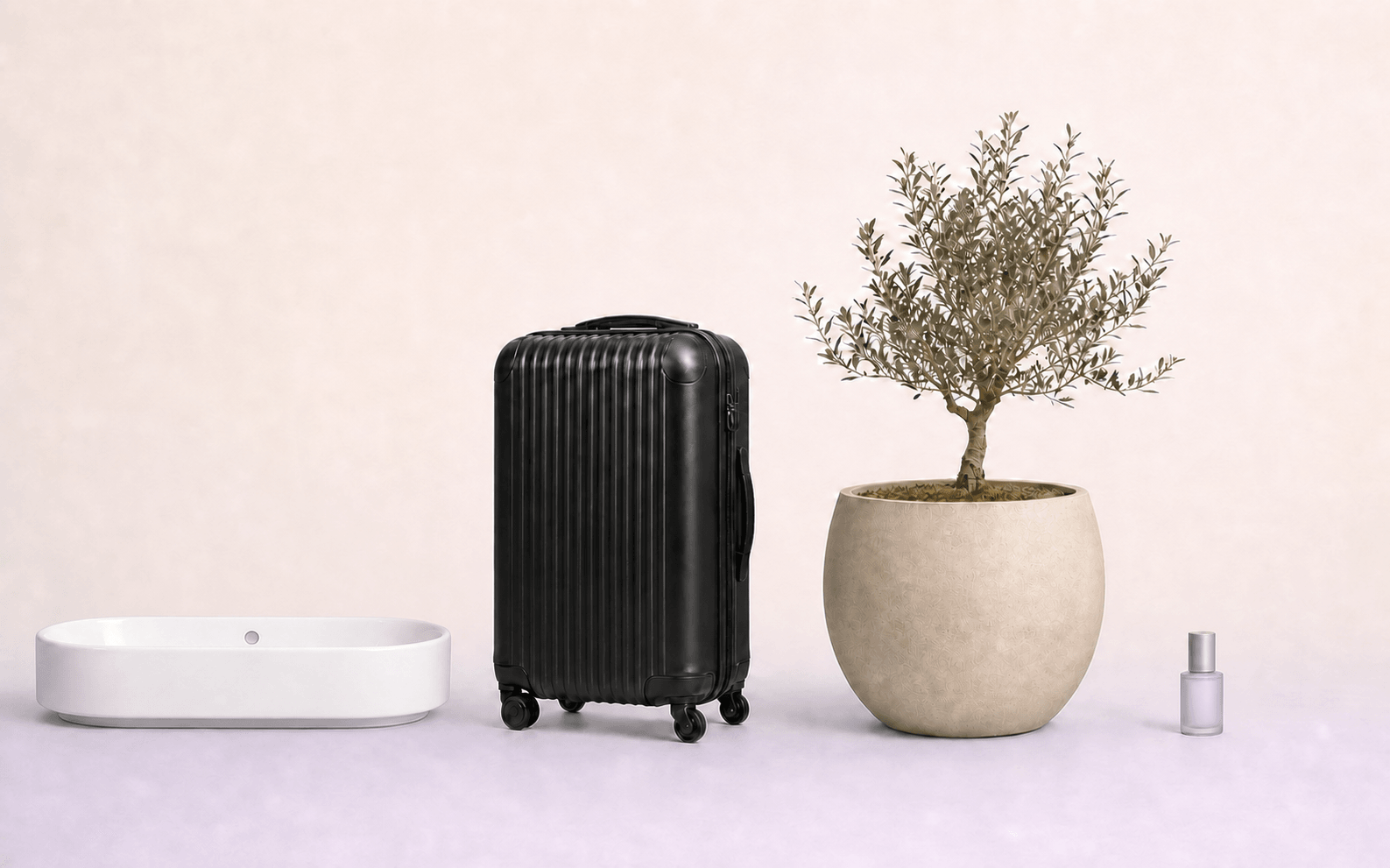
Each product at the right scale and with the right margin
Photopilot uses the product type and known dimensions to depict the product credibly. A suitcase, table lamp, or serum does not get the same crop as a blouse.
Height, width, and depth from product data
Own scale and margin per product type
Exception visible when dimensions are missing
Scale guarantee when the required product dimensions are complete.
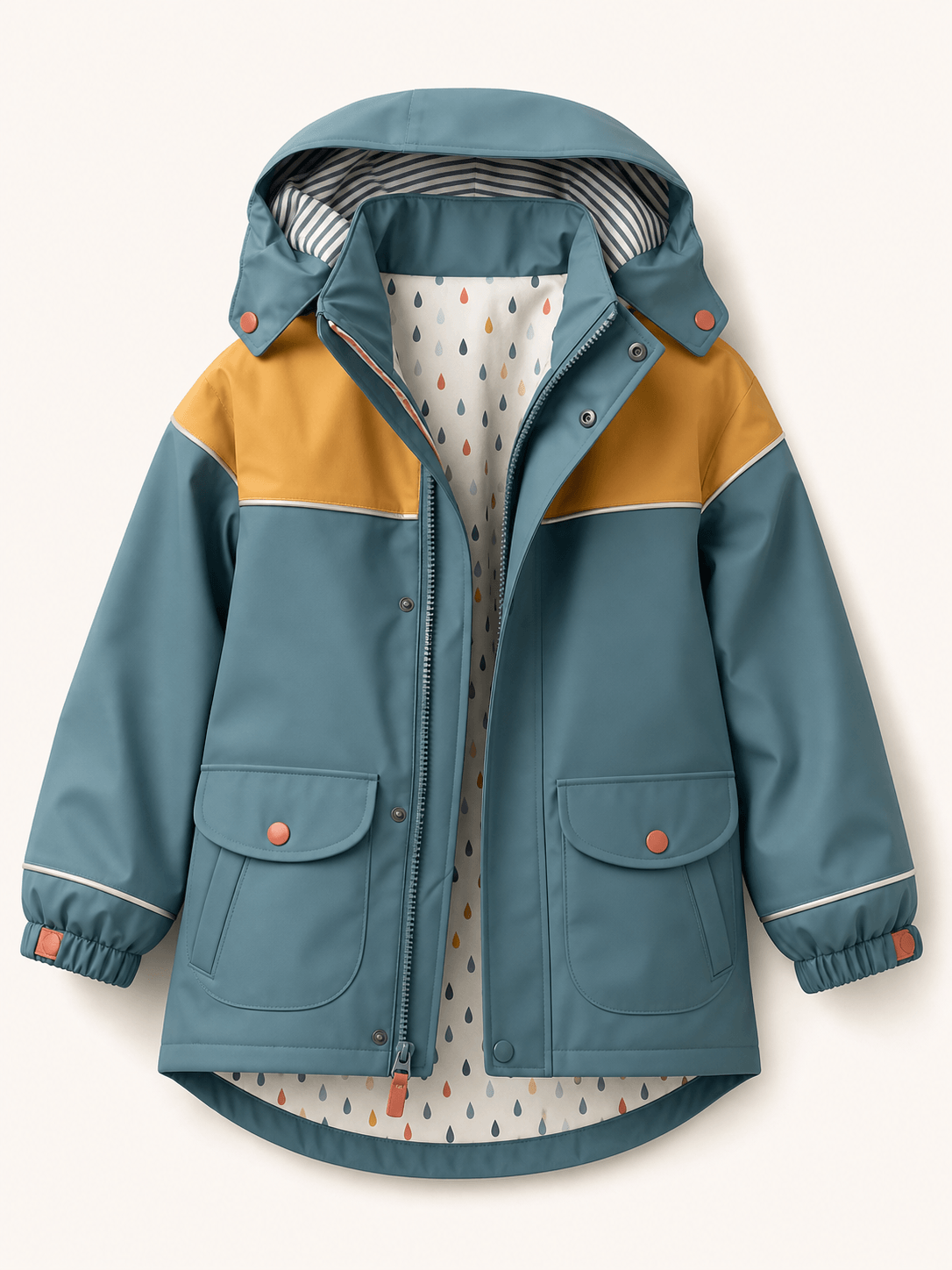
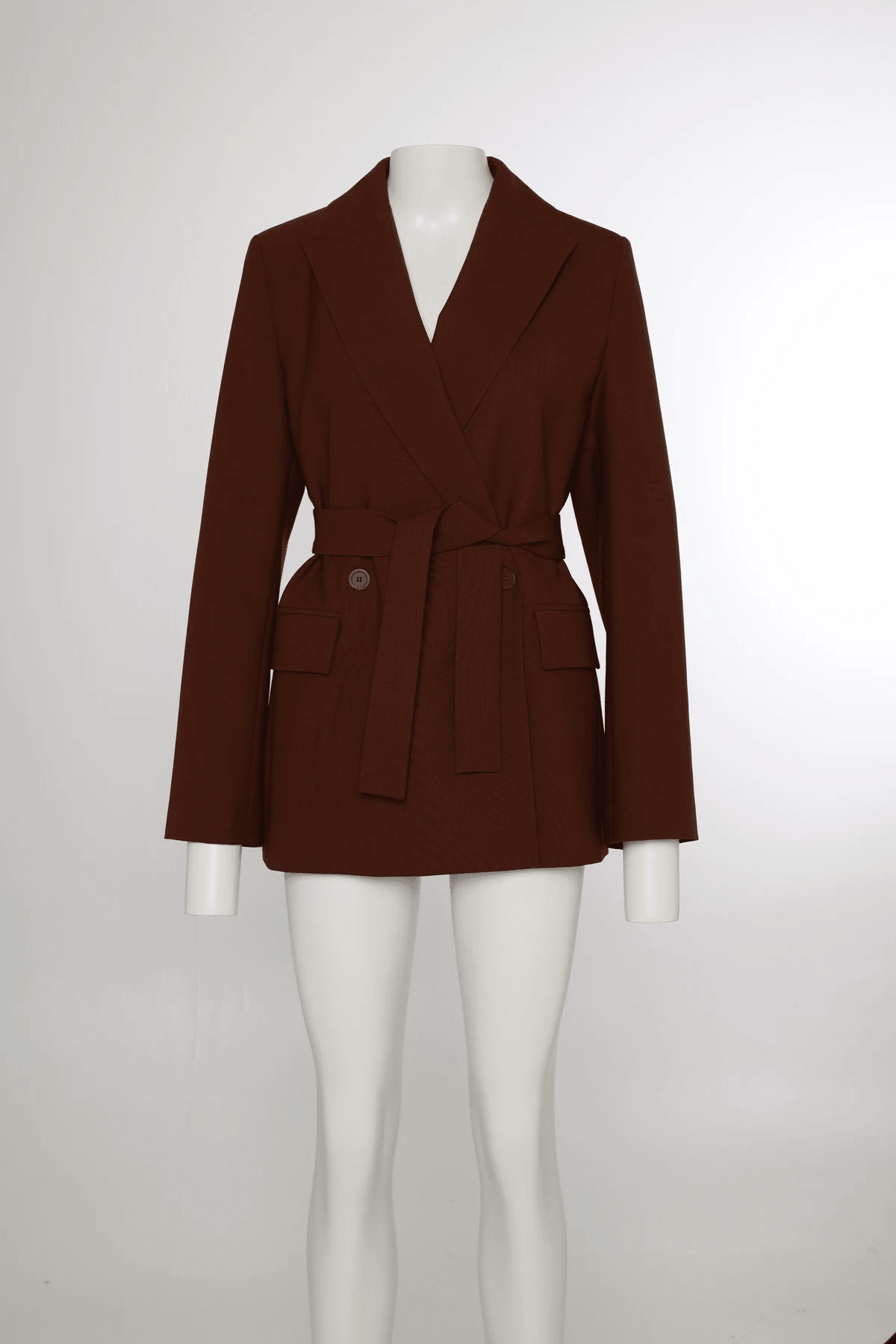
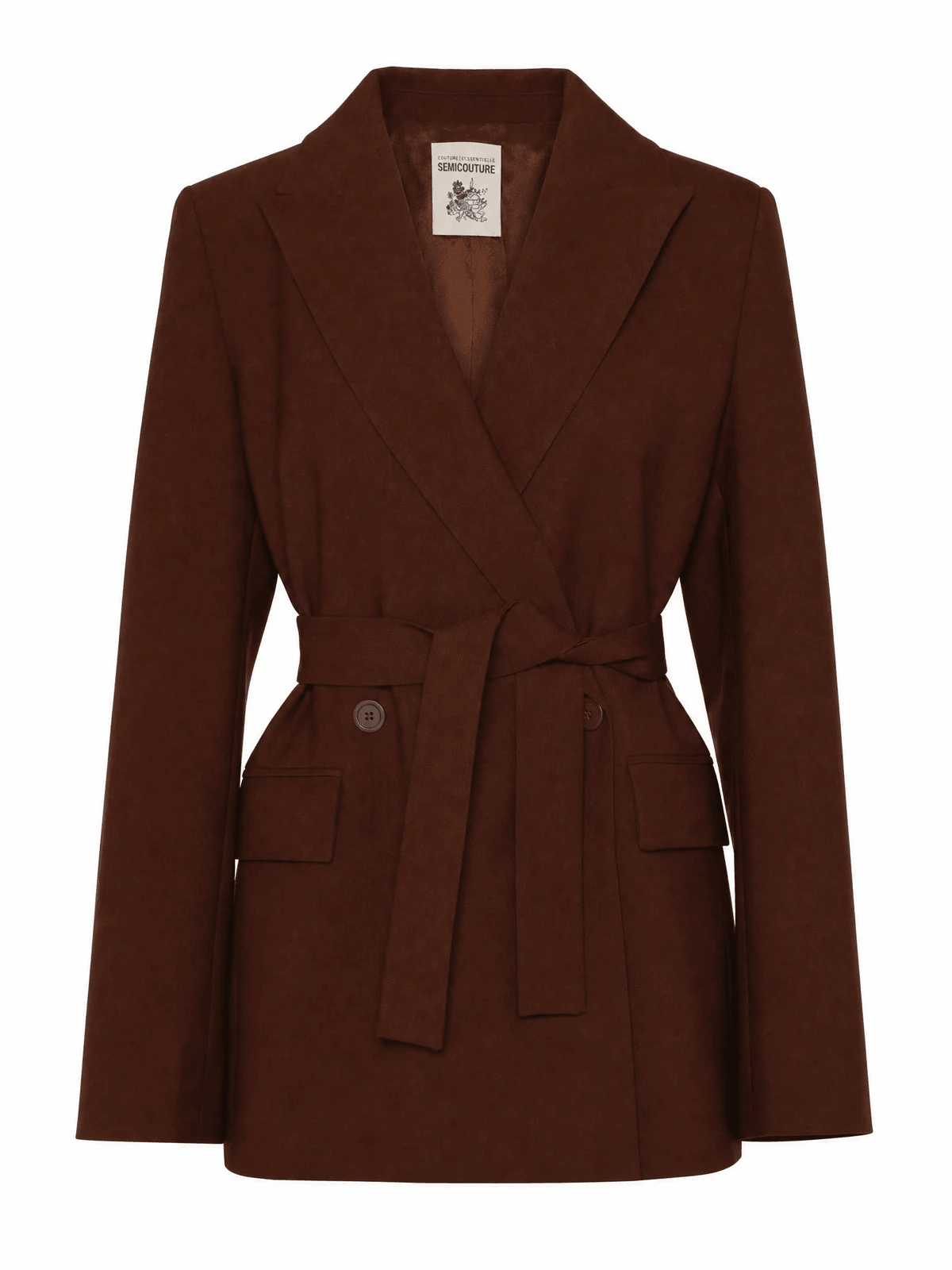
From mannequin to ghost packshot, with realistic interior
Photopilot recognizes the silhouette, removes the mannequin, and retains fit and folds as the garment falls. Do you have a separate shot of the lining and inner label? It is automatically combined in the final result, making your packshot look like a realistically hanging garment.
Also works with one source image as a backup. This creates a clean ghost packshot without a visible interior.
On mannequinGhost packshot with visible lining and label
Model to packshot
No separate shoot needed for your packshot
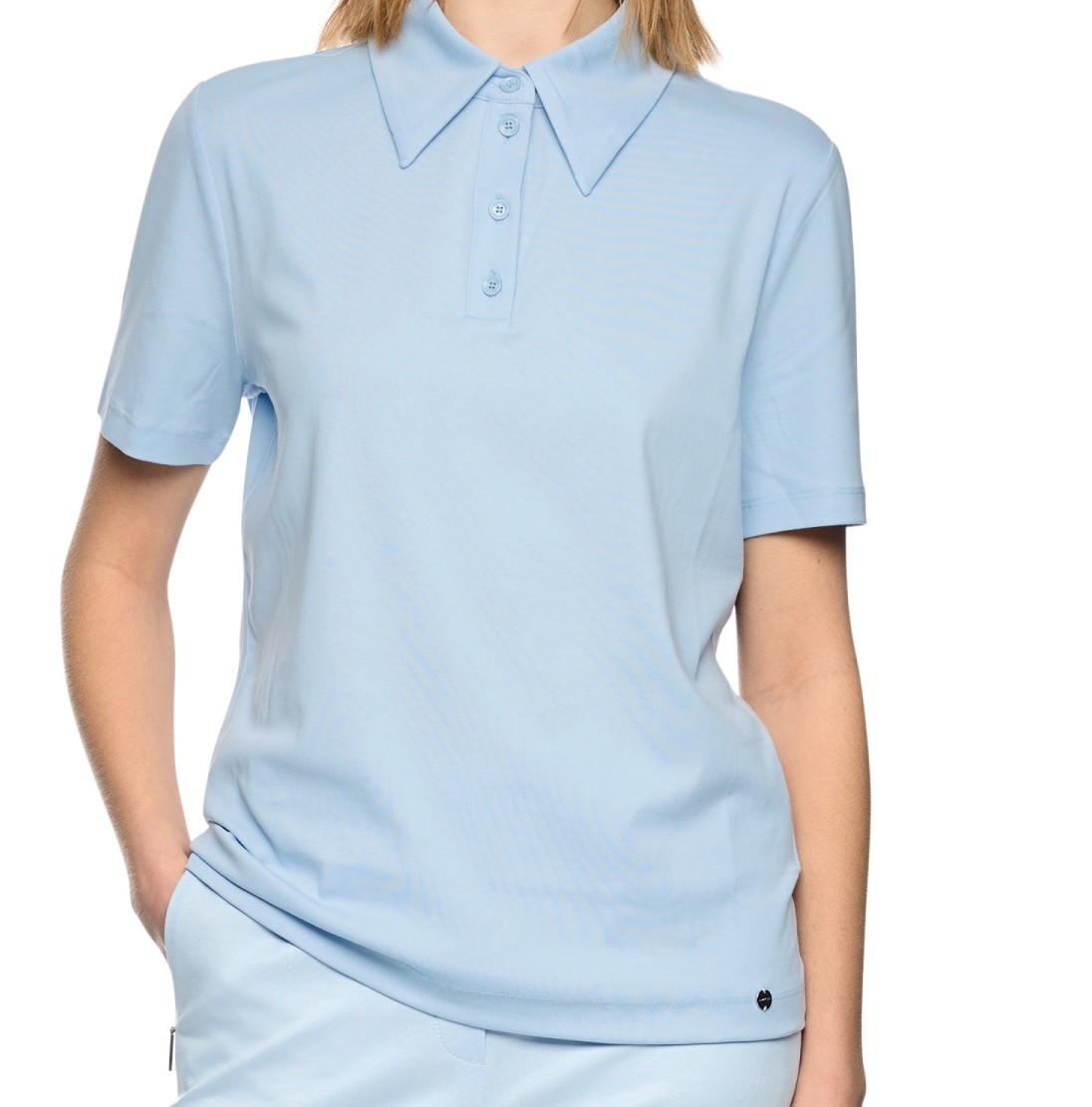
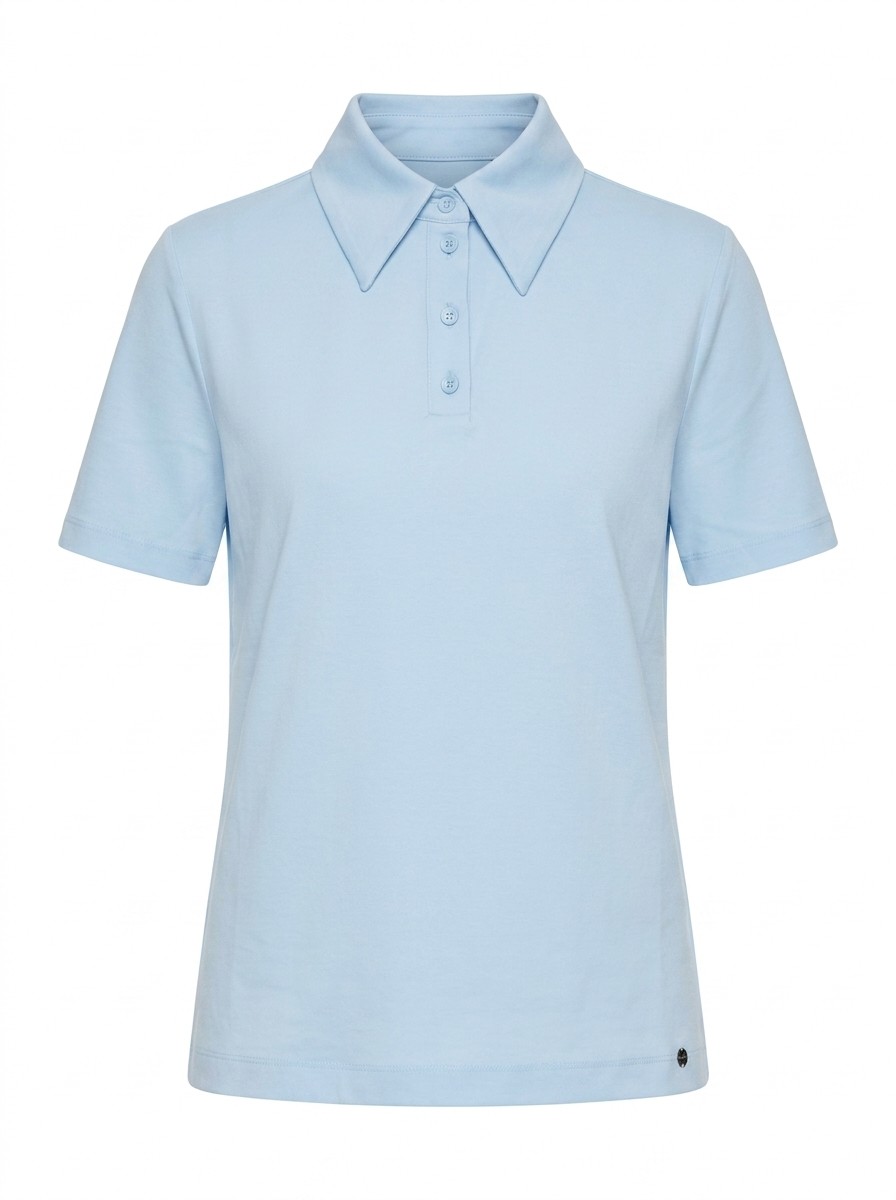
Only have model photos and no separate packshot? Photopilot automatically generates a packshot. The garment is isolated from the model photo, corrected, and placed on a clean white background, so you still have a product page-worthy hero for each item.
The generated packshot shows no label on the inside and can also be displayed as an extra image slot alongside your existing packshots, without overwriting existing slots.
Model photo, sourceAutomatically generated packshot
Fixed editing steps
Every packshot runs through the same fixed actions
The order is fixed. First, the image is cleaned up, then crop, color, shadow, and export follow. You can use different settings per brand or article group, while the result remains predictable.
For your team, this remains clear: you define differences in advance, instead of editing each photo separately.
Grid
Place the article on your fixed guide lines, with article-group-specific margins and ratio.
Included · no extra credits
AI shadow
Add a subtle shadow when the product would otherwise look too flat or floating.
Included · no extra credits
Color correction
Correct white balance and product color based on reference images and previously approved photos.
Included · no extra credits
Background
Remove edges, imperfections, and excess space before making the final crop.
Included · no extra credits
Export
Write filename, format, order and channel according to the publication rules.
Included · no extra credits
Directly from the studio into the system
No manual uploads, no manual naming
Photopilot Studio connects with your Canon camera. Profoto, OrbitVu, and Capture One can follow via your existing studio output. The photographer shoots, and our software places each shot directly with the right item and in the right image slot, whether it's front, back, detail, or hero. No folder work and no ambiguity about which photo belongs to which item.
Photopilot Studio with Canon, or Profoto, OrbitVu, and Capture One via your studio output.
02
Slot already recognized
The studio knows which item you are photographing and in what posture.
03
Automated processing
Editing, mannequin remover, color correction, and templates are executed according to fixed rules.
04
Online automatically or after review
Per brand or collection directly to Shopware, Shopify, Scayle, or FTP.
What else is included
Grid, color consistency, image slots, and publication to your shop.
Swipe for more capabilities
Template & Framing
Consistent posture and framing
For each item group, you set the grid: how large the item appears, where the shoulder line falls, and how much space remains around it. Each new photo automatically follows that standard.
Included · no extra credits Color consistency
White balance, background and AI shadow
Backgrounds are cleaned to soft white, with subtle shadow preserved or added. Color profiles stay consistent between camera shoots and supplier images, so the collection feels like one whole.
Included · no extra credits Image slots
One source, multiple destinations
Square for the product page, portrait for social media, wide for the hero banner. Each output variant has its own cropping rules, format, and destination. Automatic or manual approval publishes everywhere.
Included · no extra credits Linked to article
Photos automatically link to the correct item
With the file name, EAN, supplier code, or barcode, Photopilot links each photo to the correct article. This is followed by automatic approval or a quick review by your team.
Included · no extra credits Directly publish
Publish on your terms
Packshots go via automatic approval or a chosen control step directly to Shopware, Shopify, Scayle, or a custom FTP destination.
Included · no extra credits
Frequently Asked Questions
How does Photopilot remove a mannequin from a packshot?
Photopilot recognizes the silhouette, removes the mannequin, and preserves fit and folds. With a separate shot of the lining, you get a realistic ghost packshot with a visible inside.
What does automatic packshot editing cost?
Grid, shadow, color correction, and background are included in the monthly plan. Only generative AI is billed per image: €0.05 via the background queue.
Do I have to approve every packshot before publishing?
No. Per brand or collection you choose automatic approval or a review step of your choice. Images then go straight to Shopware, Shopify, Scayle, or your own FTP destination.