
PhotopilotPhotopilot

How Photopilot works

From supplier or studio to webshop, with reporting afterwards.

Below, you can see step by step what Photopilot does for you, with today's production figures and reports for daily steering.

Sources
  • Fashion Cloud 9.5 million supplier images
  • Stockbase Images via barcode
  • ACA New articles are automatically created
  • Own studio Photopilot Studio, Profoto, OrbitVu, Capture One
  • Suppliers Brand portal, dealer extranet or email attachment
  • Custom PIM, FTP or Azure
Destinations
  • Shopware
  • Shopify
  • Scayle
  • FTP
  • Azure
  • Custom shop
  1. 01

    Link source

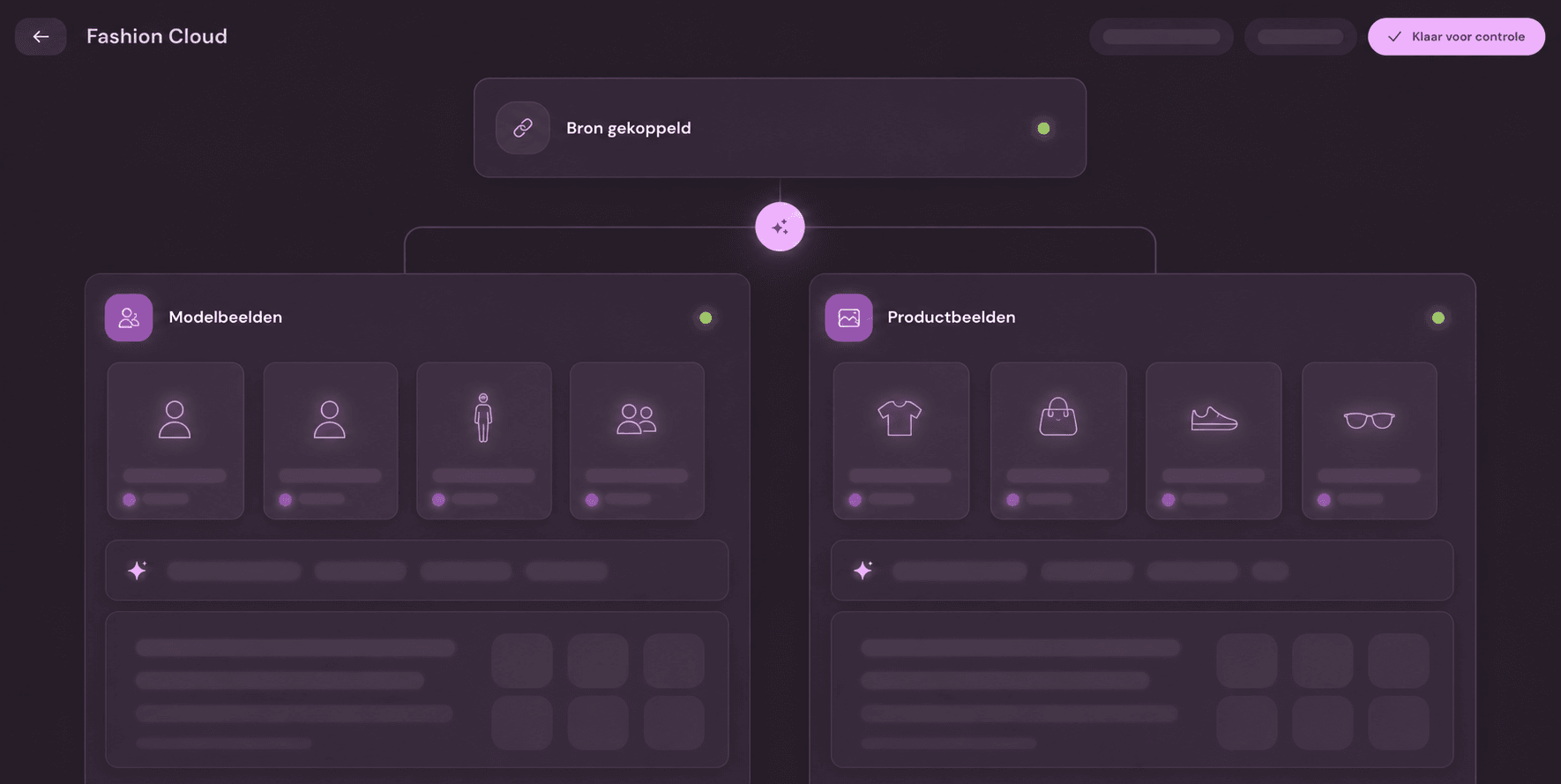
    Photos and product data are received through a single direct connection, from your supplier, own studio, or a custom feed. No separate uploads, no detours.

    • Works with Fashion Cloud, Stockbase, and ACA
    • Directly connectable to your own studio
    • 662 supplier brands managed today
  2. 02

    Photos with the right item

    Each incoming photo is automatically linked to the correct item in your shop. Photopilot uses product data and barcode for this. Your team doesn't need to search for anything anymore.

    • So far, 18.9 million supplier products correctly linked
    • No manual sorting of which photo belongs to which item
    • Extra assurance via barcode (EAN/GTIN)
  3. 03

    Edit according to your brand style

    Photopilot edits each photo according to your house style. Cropping, background, color, and aspect ratio are automatic and can vary per item type, as a pair of pants presents differently than a shoe.

    • A custom template per brand, collection, or item type
    • Pack shots, ghost shoots, and flat lays automatically processed
    • Mannequin remover and AI model photos optionally available
  4. 04

    Approve with one click

    Nothing goes live without approval. Photos are grouped per item, and your team approves or rejects them in a clear work list, individually or in bulk per collection.

    • Approve or reject in bulk per item group
    • Order, versions, and variants directly adjustable
    • Automatically approve with high confidence, optional
  5. 05

    Including product texts and translations

    Photopilot automatically writes product descriptions, USPs, wash symbols, and materials in your tone of voice and in all desired languages. Ready to push to the webshop.

    • Wash symbols are recognized and converted into readable washing advice
    • Each brand has its own tone of voice and text length.
    • Multilingual, suitable for every language variant in your webshop.
  6. 06

    Live on the webshop

    Photos, texts, and product data go to the webshop in one go. No separate exports for images and content, one publication moment, everything in the right place.

    • Directly to Shopware, Shopify, Scayle, or FTP.
    • Filenames and order automatically correct.
    • One publication moment for photos, content, and product data.
  7. 07

    Report and steer

    After publishing, it remains visible what still needs attention. Reports show missing items, stock impact, Fashion Cloud potential and productivity per team or workflow.

    • Missing images broken down by stock, brand and action
    • Fashion Cloud potential: solve immediately, activate a brand or plan photography
    • Productivity per Studio, Pipeline and Content with action mix and focus heatmap

Want to see what it yields for your collection?

In one conversation, we review your supplier source, output channels, and collection size, and provide a concrete estimate.

Software tour: from source to webshop

See how the modules work together in the same workflow: supplier imagery, studio, AI editing, content, styling and publishing.

Packshot editing

Pack shots that look consistent every day, without manual work.

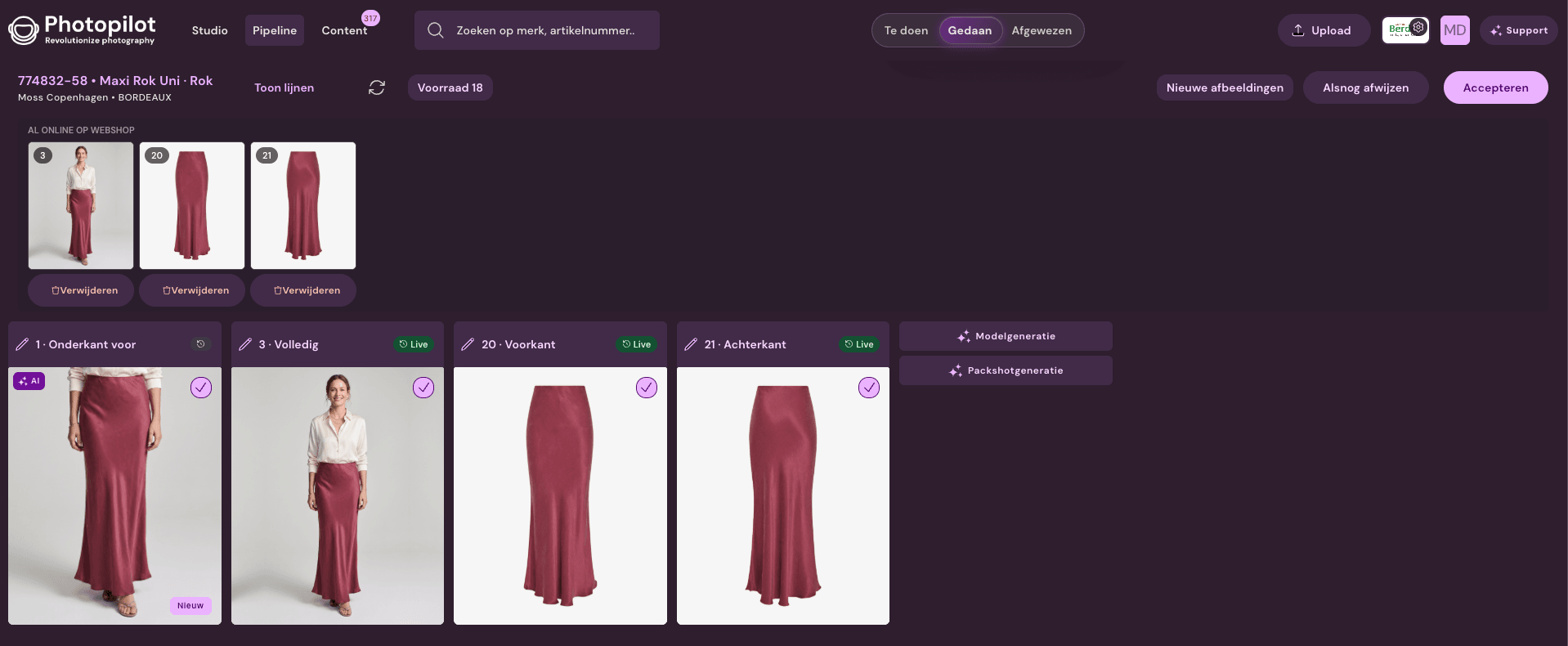
Pipeline

Automatic image processing

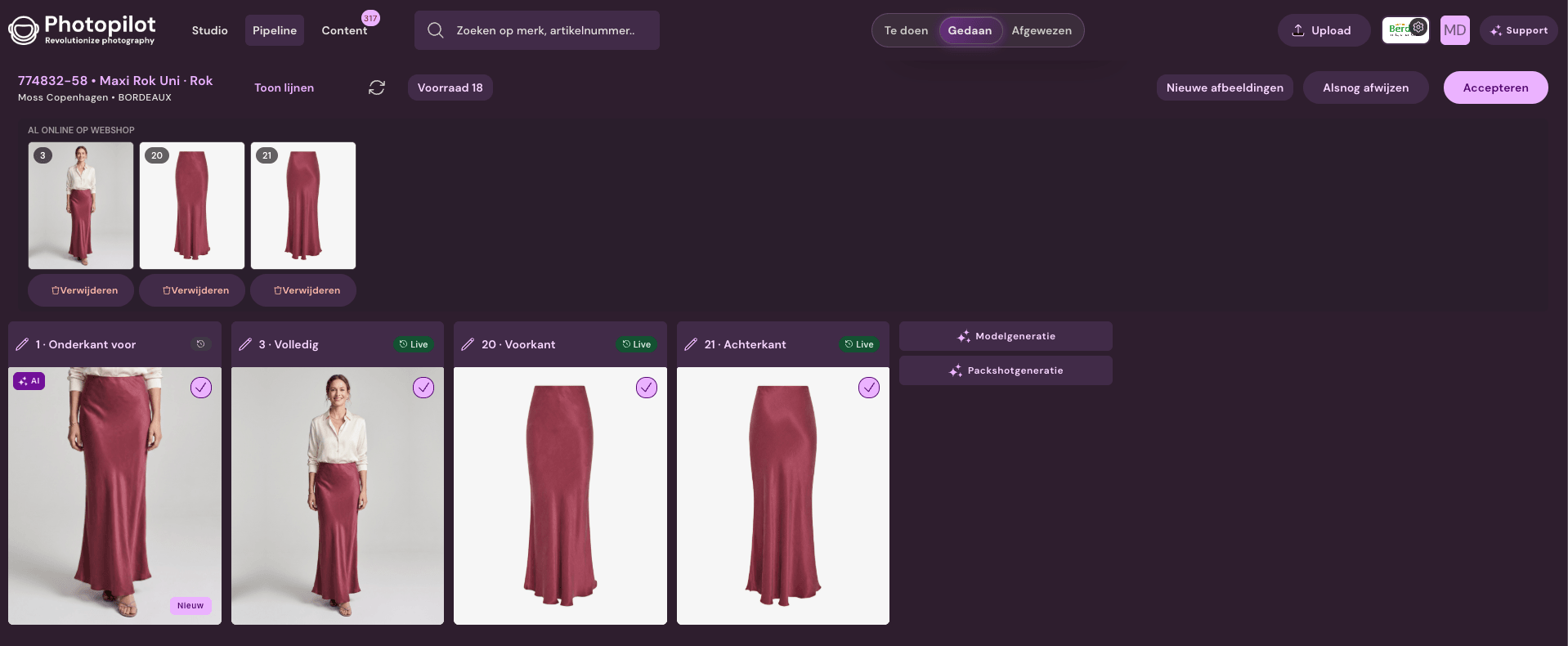
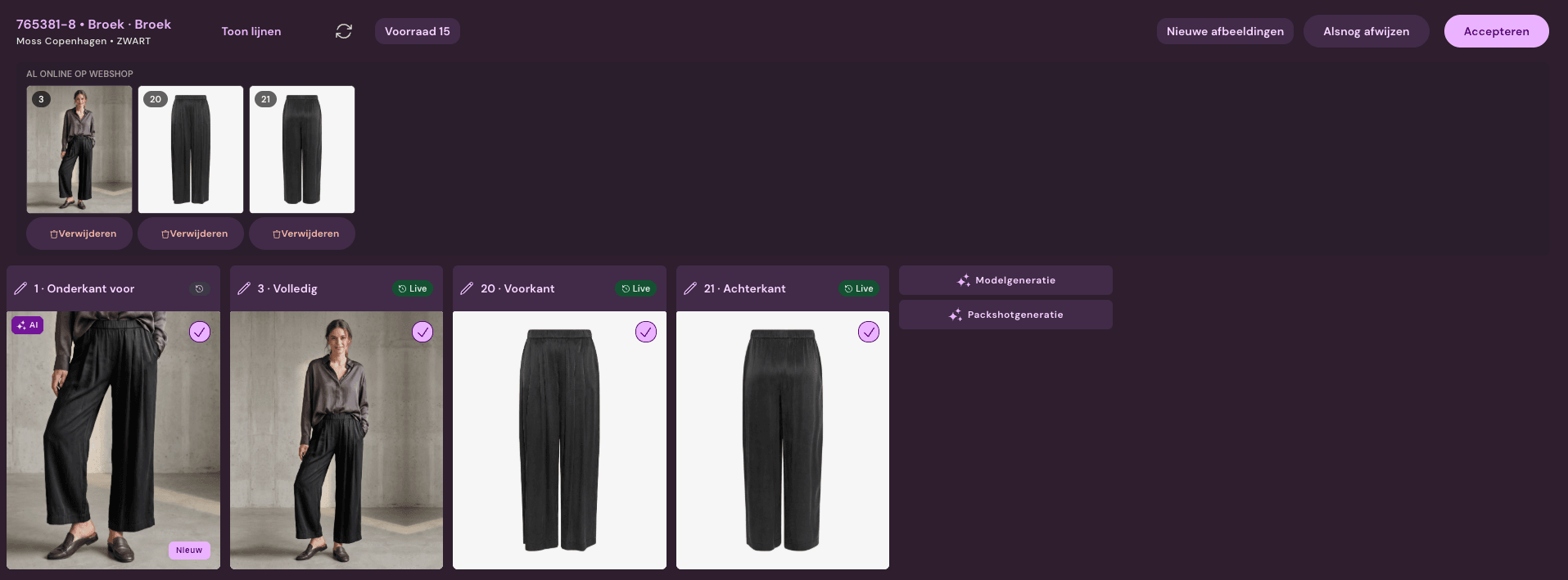
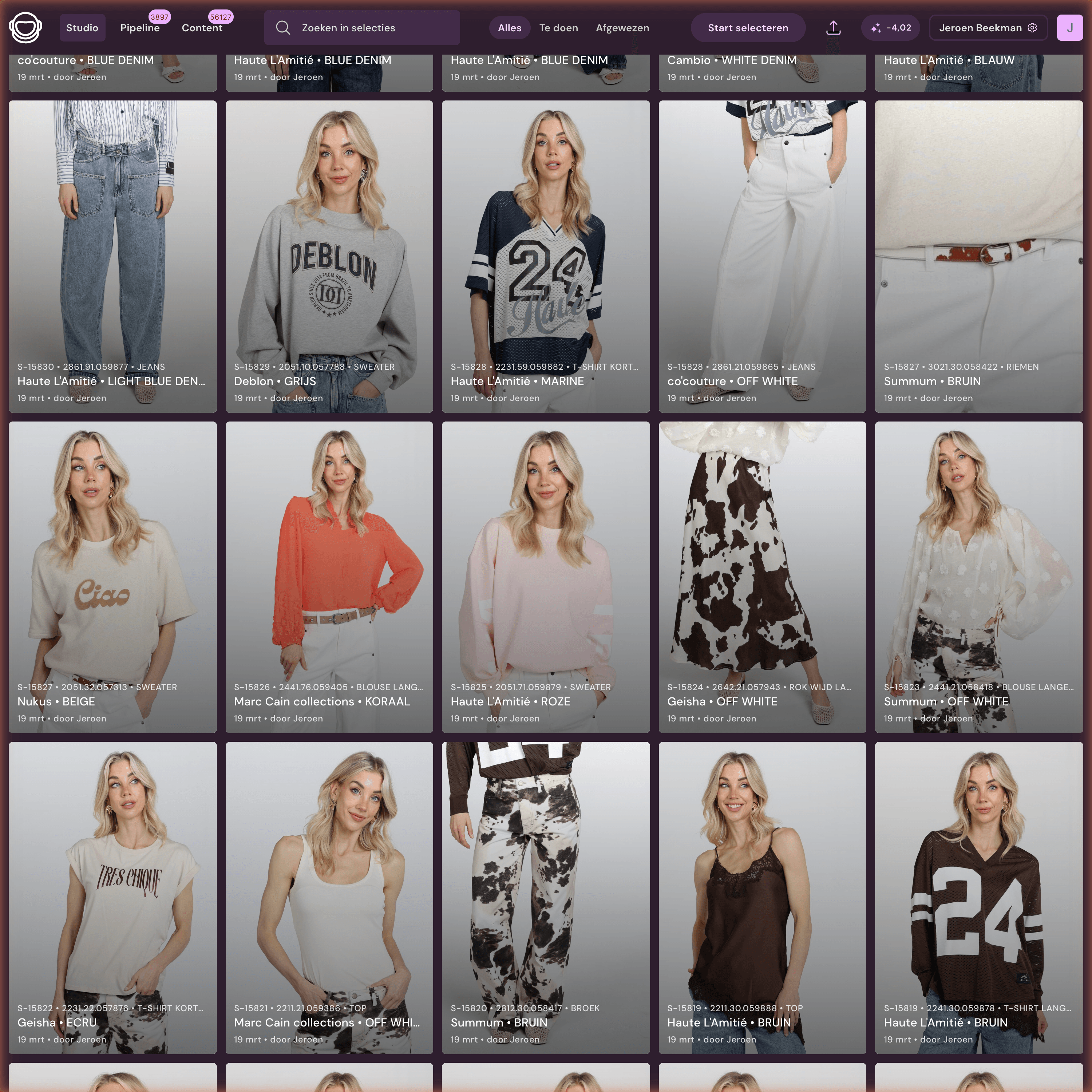
Supplier photos and own photography are automatically cropped, categorized by pose, and published to your webshop in a controlled manner. Teams work from one overview for review, bulk actions, and exceptions.

View Packshot Editing module
Pipeline overview
AI editing

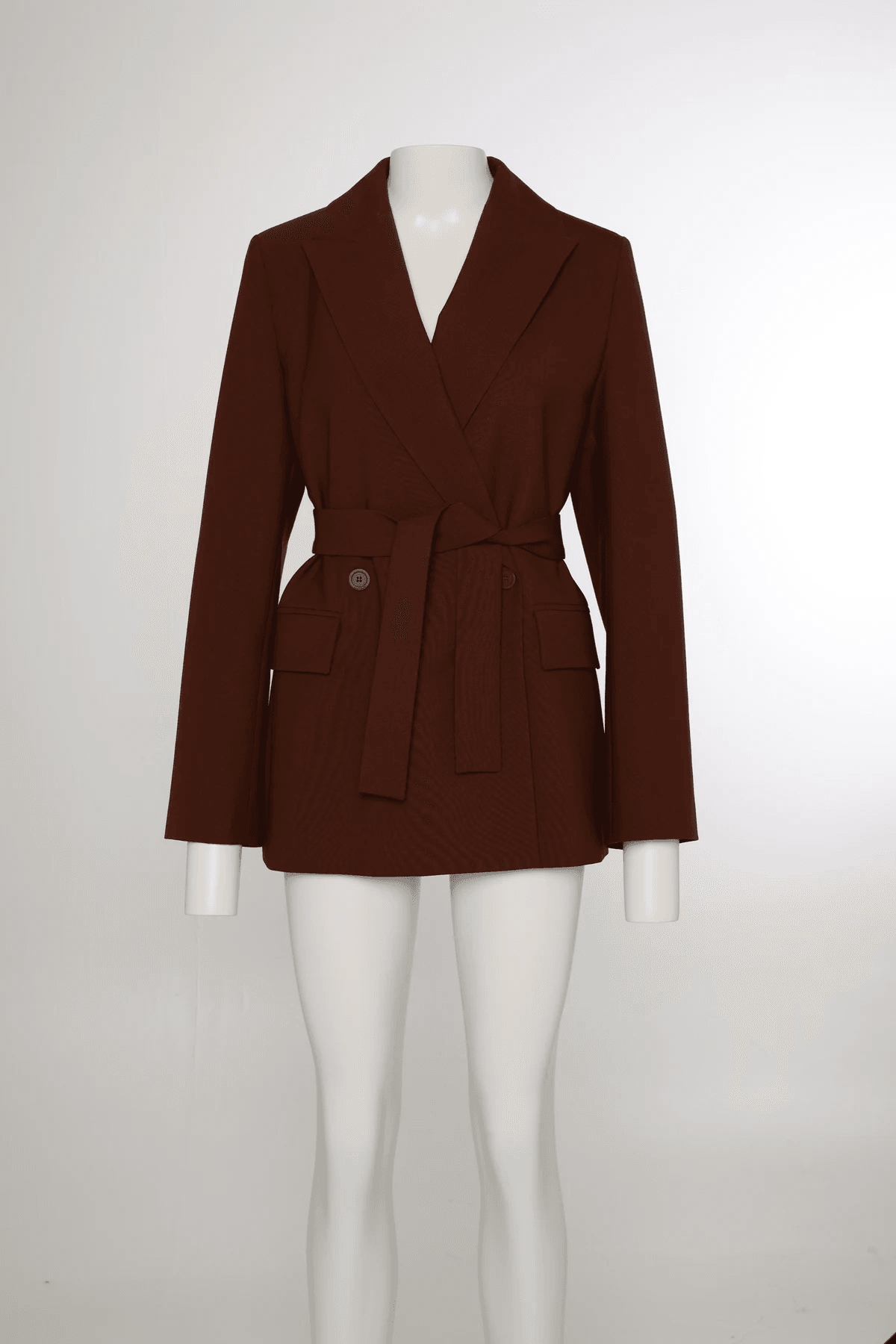
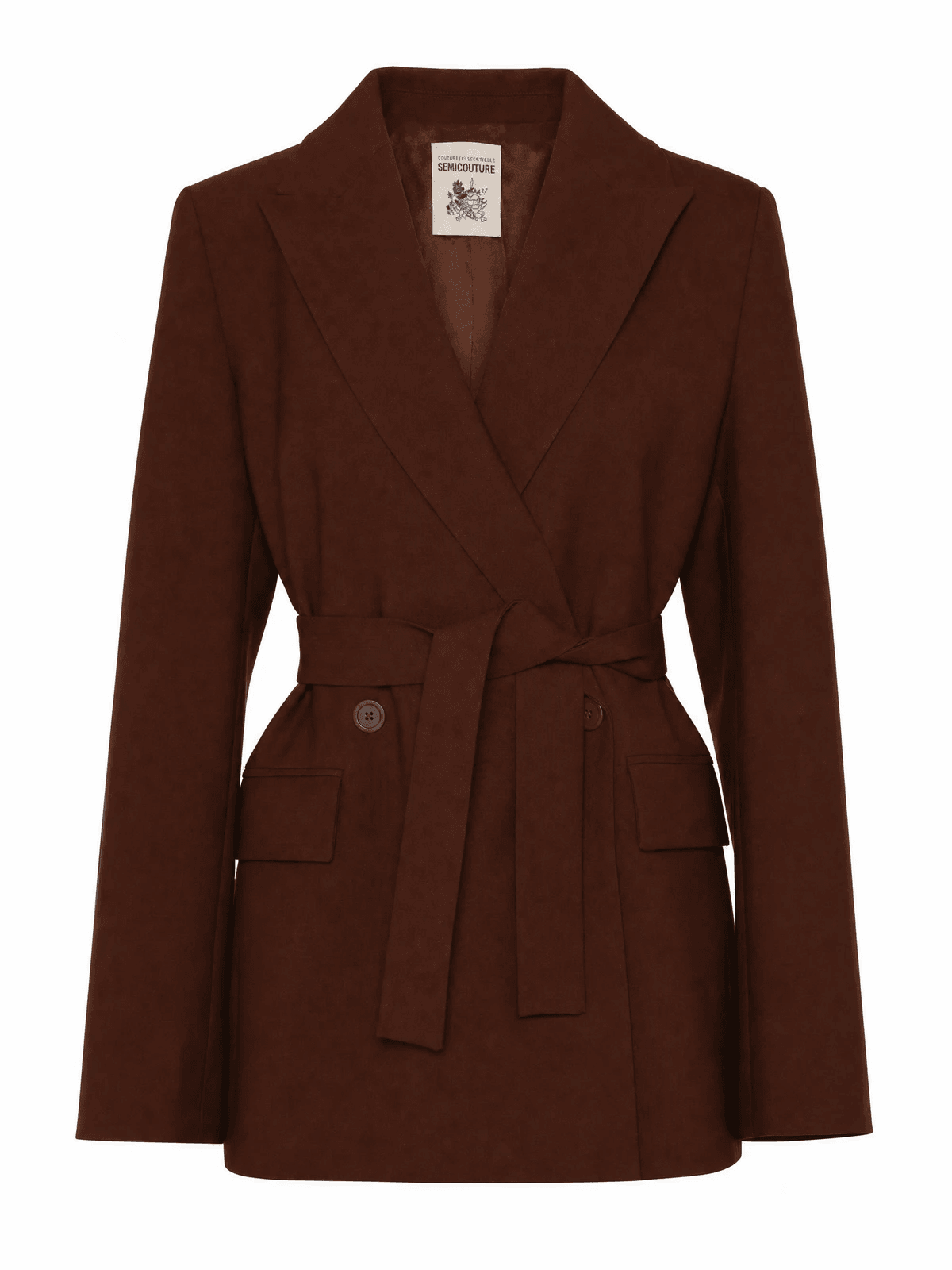
Mannequin to ghost packshot

Convert mannequin or model photos into clean ghost packshots and import approved results back into the pipeline.

Blazer ghost-shoot with visible inside and label
Source image
Blazer as ghost packshot after processing
Ghost packshot
View AI packshot editing
Pack-shot pipeline grid

Model photography and AI generation

Studio shoots and AI model photos processed in the same workflow.

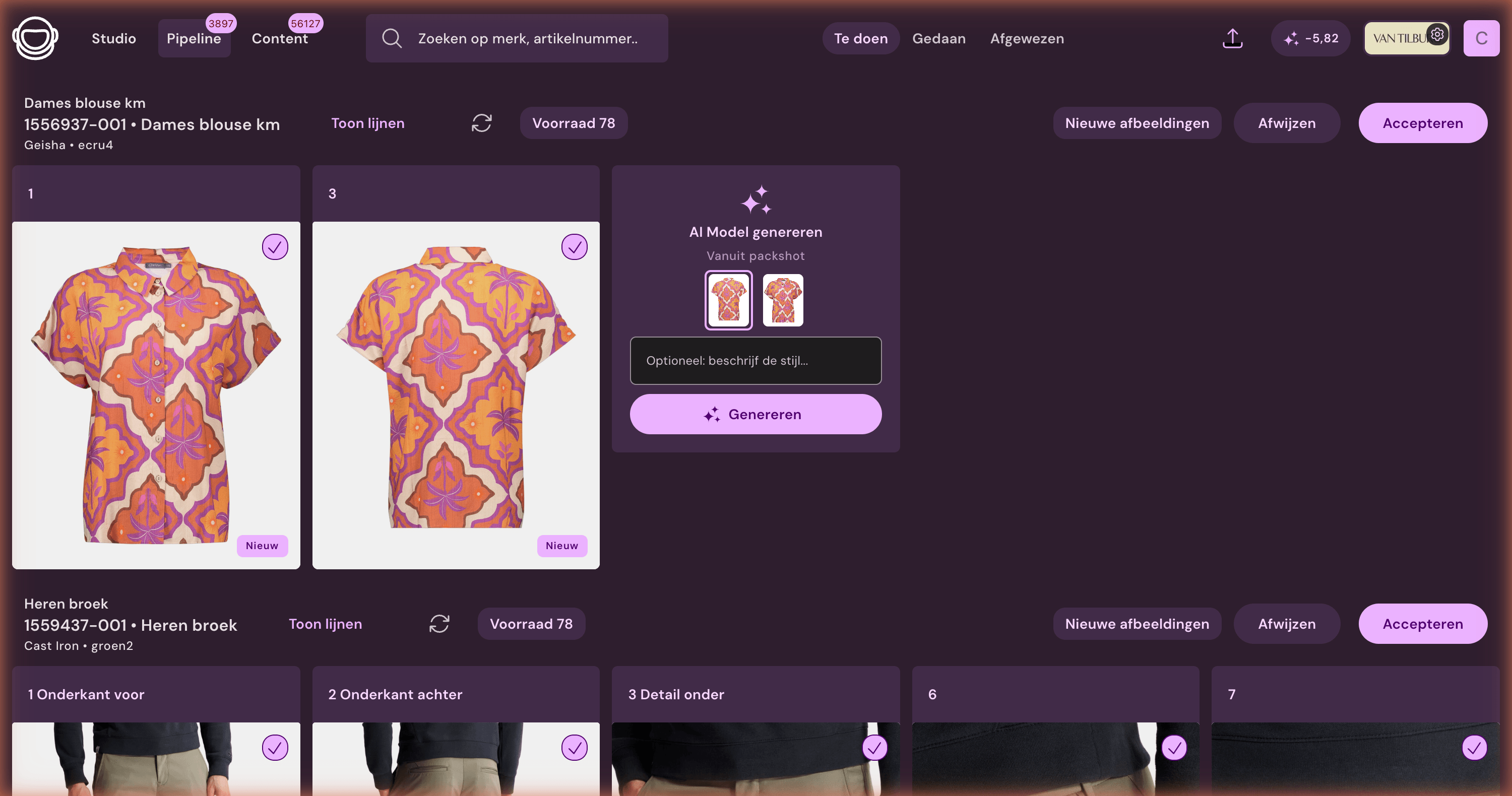
AI model generation

Model photos from one packshot

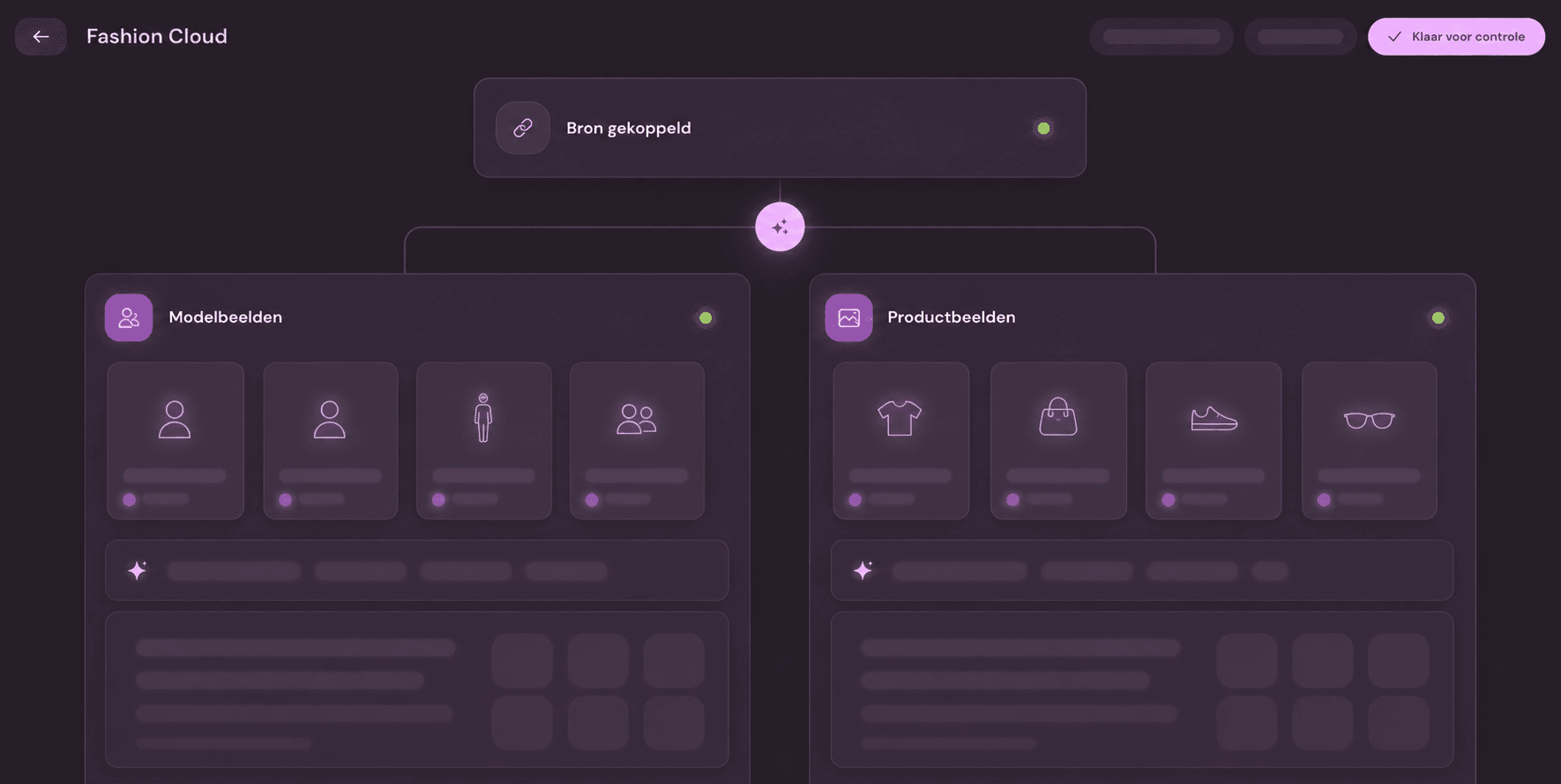
Generate model photos from a packshot with type-specific prompts per item category. Studio shoots and AI models then go through the same editing and publication flow.

View Model Photography module
AI model generation

Studio

Plan shoots, photograph, and process directly in the workflow.

Shoot management

Plan, shoot, select

Plan shoots per collection, assign models, and process studio photos automatically. The selection interface groups photos by pose, allowing photographers to quickly choose the right images. Editing, control, and publication follow.

View Studio module
Studio overview
Studio to webshop

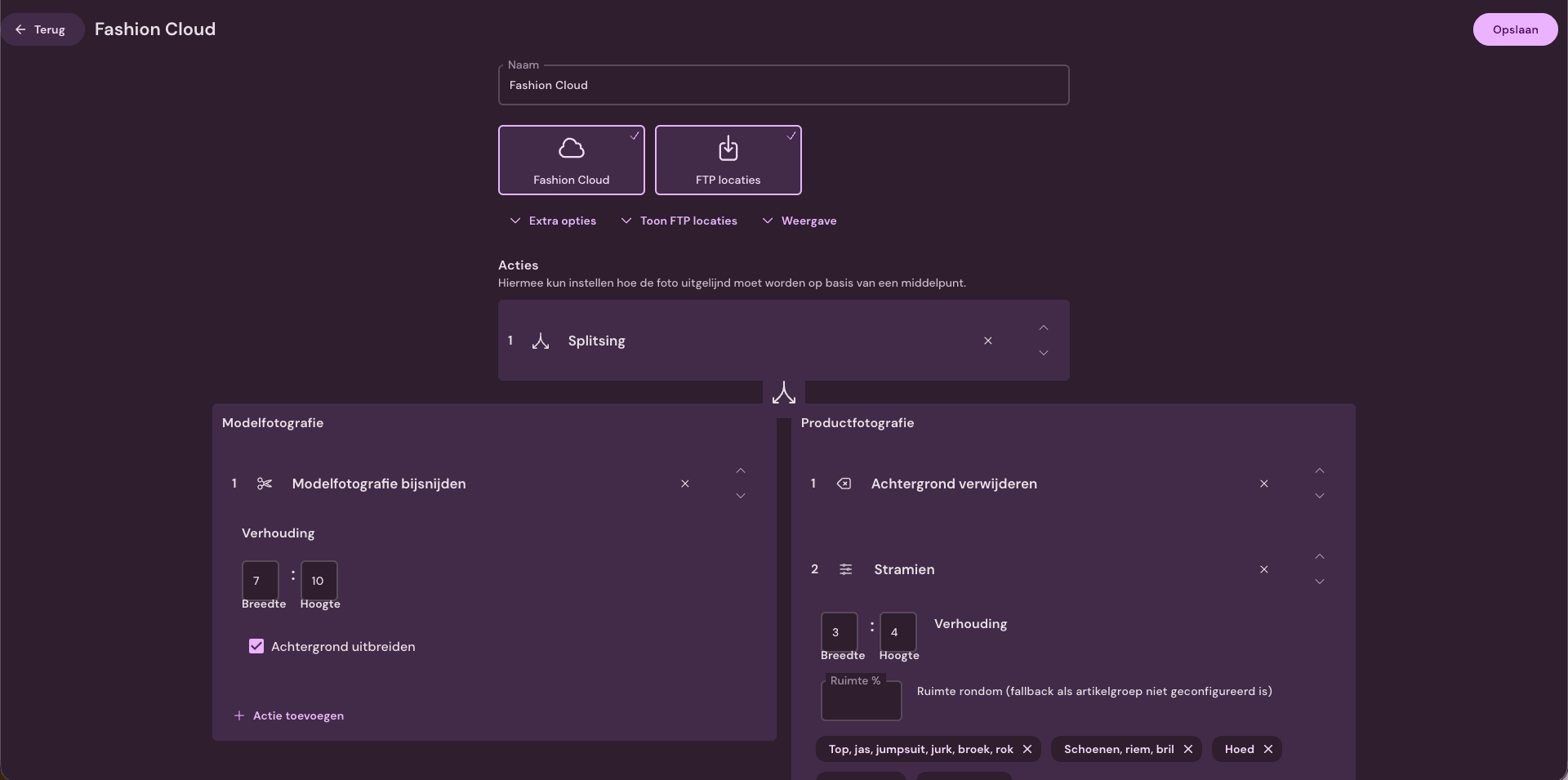
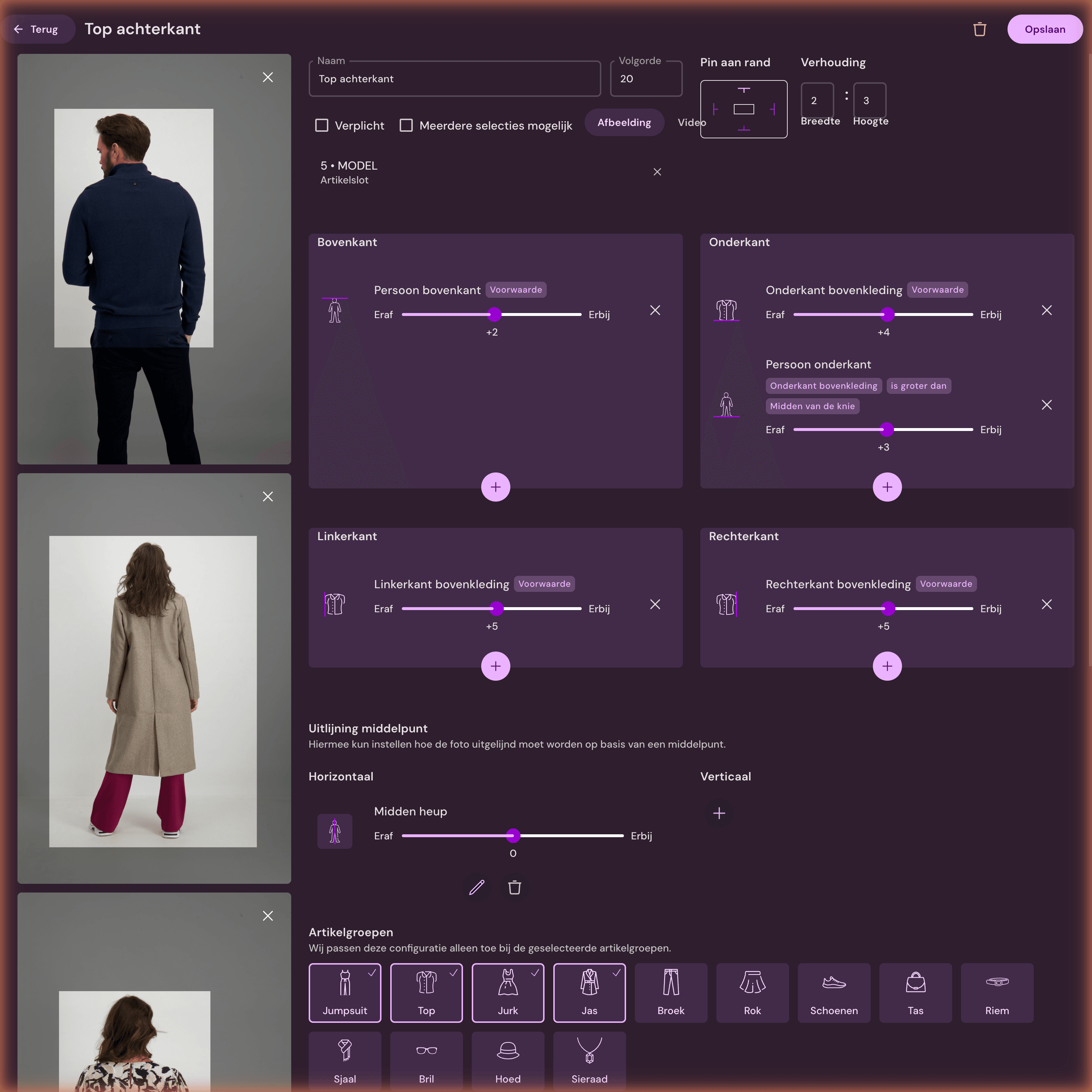
Automatic crop per product type

Met Photopilot Studio koppel je Canon-camera's aan het juiste artikel. Profoto-, OrbitVu- en Capture One-shoots kunnen via je studio-output meelopen. Daarna herkent Photopilot het producttype, kiest automatisch de juiste crop, padding en outputslot en zet goedgekeurde beelden direct klaar voor de webshop.

View Studio integrations
Crop settings per product type in Photopilot

Content

SEO product text, translations, wash symbols, and composition.

Product text

SEO product text in every language

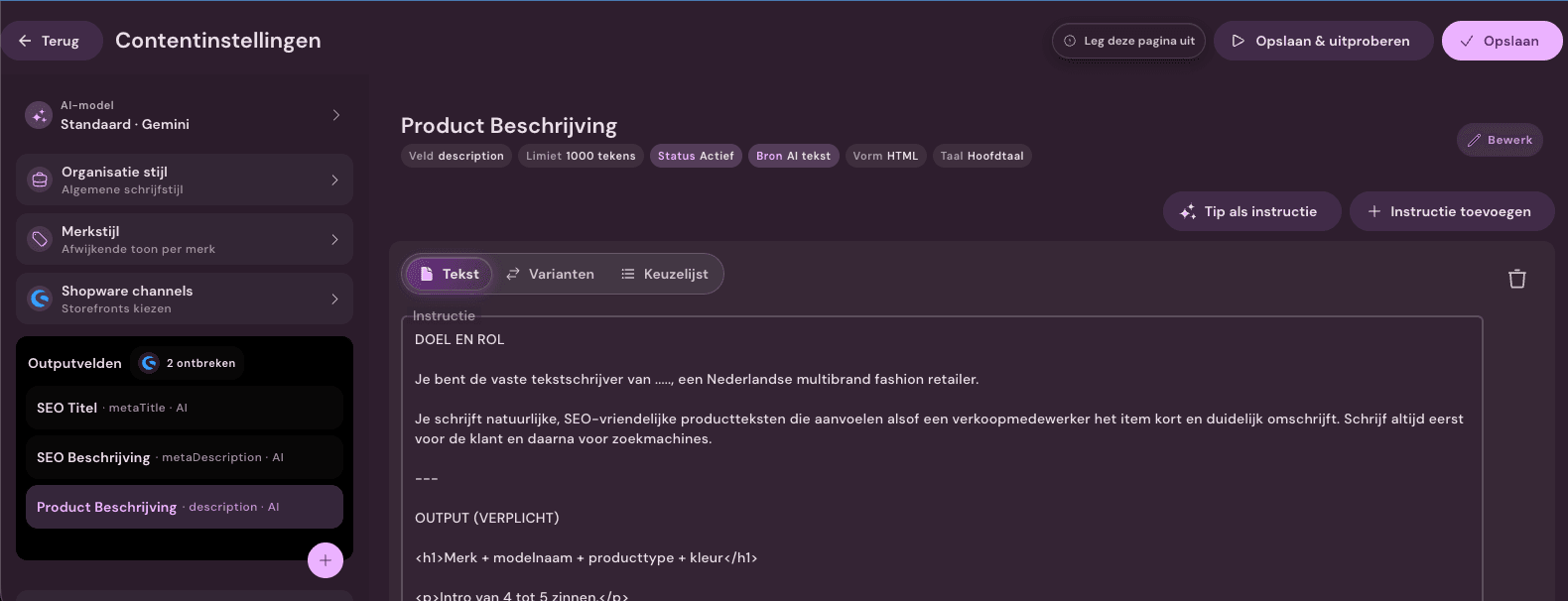
AI-generated product descriptions based on product data, care symbols, materials and set relationships. Use the same data for combine-with text and cross-sell blocks on your product page.

View Content
Content generation

Styling

Compose and publish looks from one environment.

Shop the Look

Link complete looks to your webshop

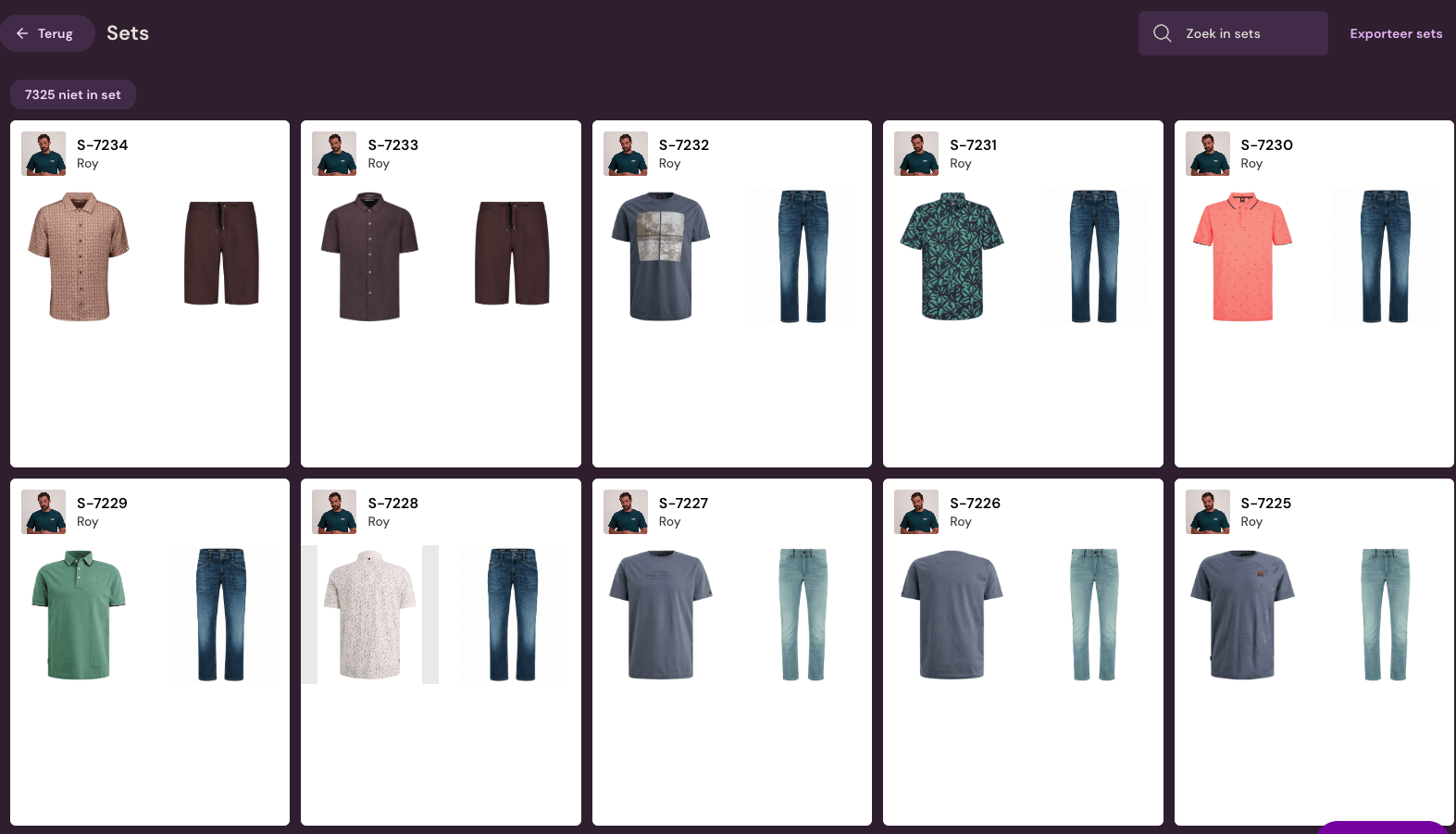
Combine items into complete looks in a visual interface. The links go straight to your webshop as Shop the Look, a combine-with block or automatic cross-sell at article level.

View Styling
Shop the look overview

Sources

Images from Fashion Cloud, Stockbase, supplier portals, or own sources.

Fashion Cloud & Stockbase

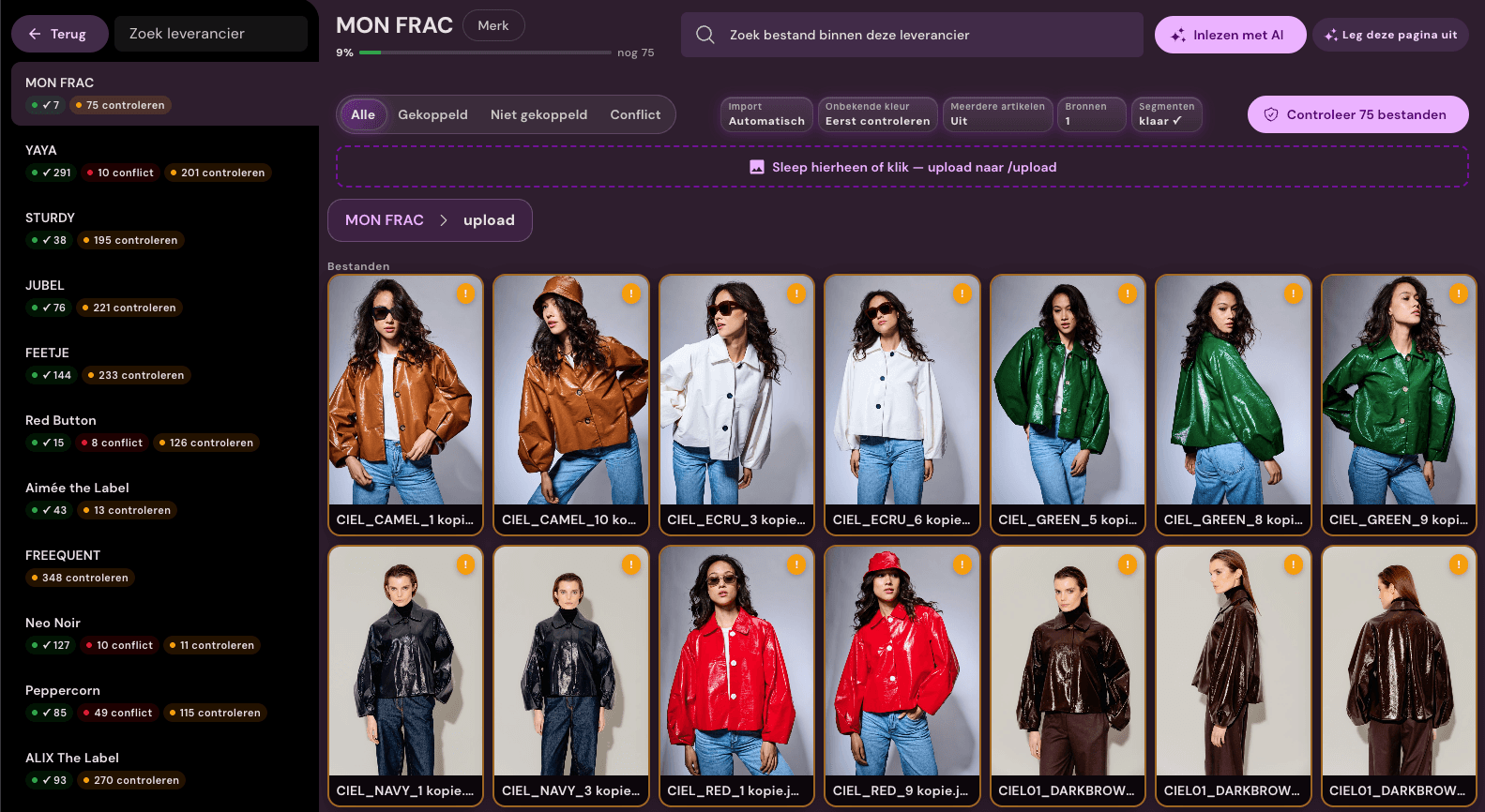
Supplier photos automatically processed

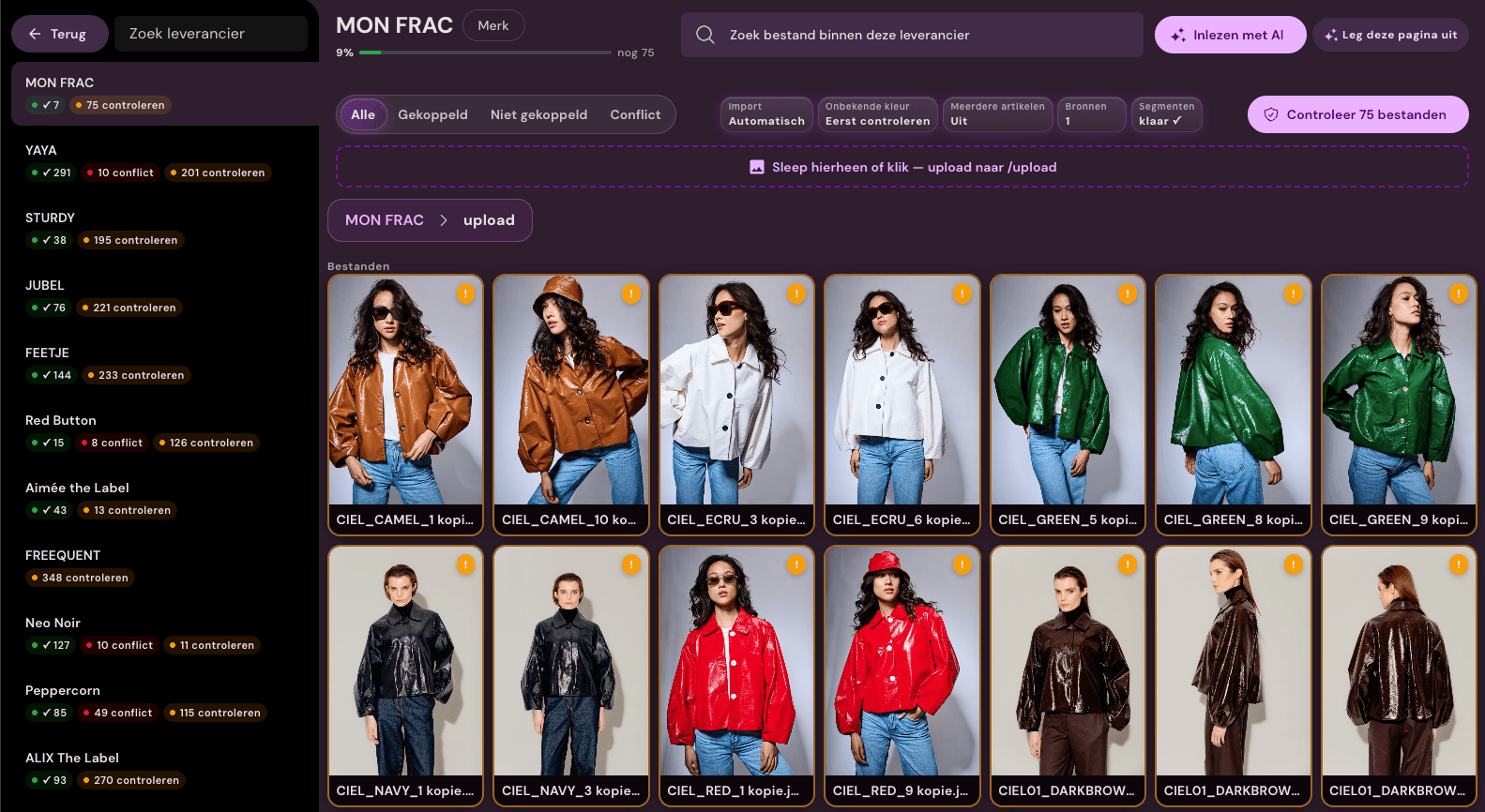
Direct connections with Fashion Cloud and Stockbase import supplier photos for items in your feed. The material is then processed through the same workflow as your own photography.

View Supplier Images module
Supplier portal with match percentages and linked images
Suppliers, new

Also for own supplier sources

Does a supplier work with a brand portal, dealer extranet, or email attachment? Link the source per brand in Photopilot. The platform links files to the correct article and processes them through the same workflow.

  • Bulk upload via ZIP, folder structure or FTP transfer
  • Naming conventions per brand (EAN, article number, color code)
  • Version control: a new delivery does not automatically overwrite live photos
View supplier workflow

Reporting and insight

See which items are missing images, what has priority and how the team works.

Insight

Steer on missing images, stock and team capacity

Photopilot shows not only what has been processed, but also what is still missing. Reports show missing items, stock impact, Fashion Cloud potential and productivity across Studio, Pipeline and Content.

  • Missing items with stock at the top, including priority per brand
  • Fashion Cloud potential: solve immediately, activate a brand or plan in-house photography
  • Productivity per day, action mix, focus heatmap and per-employee overview
Bekijk rapportage
Actions and progress in the Photopilot pipeline

Pipeline configuration

One workflow, rules per brand, collection, or product type.

Configurable per brand

Your workflow, per brand

Set crop templates, image types, output slots, and AI rules per brand, collection, or product type. One workflow, multiple tenants. The right behavior switches on automatically.

View Asset Management module
Pipeline configuration
View all workflows