If your image storage runs in Microsoft Azure, Photopilot writes approved product images directly to your Blob container. Your webshop, ERP, DAM or own software picks them up there, using fixed folders and filenames. You keep storage under your own control, while Photopilot makes sure the right version is always there.
01
Why use Azure Blob as the destination
Many organizations use Azure Blob Storage as the central location for product images, read by multiple systems. Instead of manually downloading and uploading images, Photopilot writes them there automatically once they have been approved. The container remains yours, and every connected system works with the same files. Azure can be the only destination or run alongside FTP, SFTP, and webshop publication.
02
Item data and front matching
Which images end up in Azure starts with the items Photopilot reads from your ERP, POS system, webshop, or product feed. Supplier images and studio photos are linked to those items by EAN, item number, and color code. This tells Photopilot which item, color, and image position each file belongs to. That exact information is reflected in the path in the container.
03
Processing before anything is stored
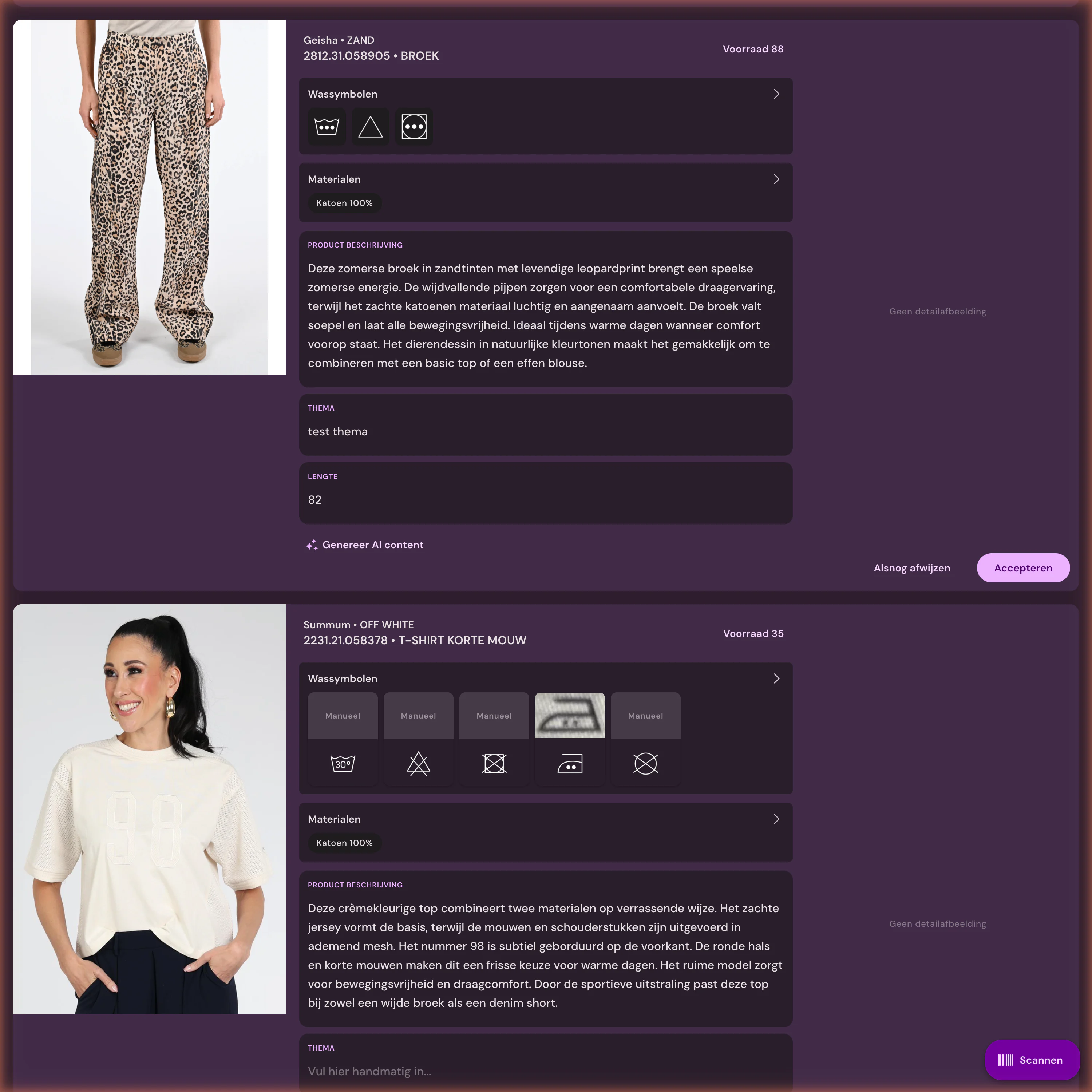
Before an image goes to Azure, Photopilot standardizes the background, crop, and format according to your rules. Mannequin photos become ghost mannequin images, missing positions can be filled with packshots, AI model photos, or campaign images, and Iris, as AI creative director, monitors the style. Product copy, SEO copy, and material information are also generated from labels and care symbols. Only after approval, either by your team or according to the autopilot rules, is the file written.
04
Fixed paths, versions, and cleanup
Photopilot writes each image to a fixed folder structure, using your filename rule based on item, view, and order, optionally under your own base folder. Connected systems can then work with predictable Blob URLs. If your team replaces or deletes an image, Photopilot also cleans up the old file in the container. An image is usually in Azure within a few minutes of approval.
05
Overview of what has been published
Storage in Azure stays linked to the item and publication status. For each item, you can see which images have been written, which are still waiting for approval, and which need to be processed again. The missing images overview shows where the container still has gaps. This makes Azure a reliable reflection of what has been approved, not a disconnected dump.
06
Connect with a SAS URL
You create a SAS URL for the container in the Azure Portal with write permissions, and delete permissions if replaced images need to be cleaned up. Enter that URL in the export settings in Photopilot, optionally with a base folder. Photopilot does not get access to your Azure account, only to that one container, and you can revoke or renew the SAS URL yourself. Setup takes fifteen minutes and is not an IT project.
Azure Blob Storage at a glance
What is exchanged
Photopilot writes approved images to your Azure Blob container, using a fixed folder structure and your file names. If your team replaces or deletes an image, Photopilot also cleans up the old file in Azure. Azure can run alongside FTP or Shopware.
How often
Usually within a few minutes after approval, with automatic retry if an upload fails.
What you provide
A SAS URL for the container with write permissions, and delete permissions if Photopilot needs to clean up replaced images. Optionally, a base folder.
Good to know
Five customers export to Azure this way. Photopilot does not use your Azure account, only the SAS URL, which you can revoke yourself.
Can Photopilot automatically upload product images to Azure Blob Storage?
Yes. After approval, Photopilot writes each image directly to your Azure Blob container, usually within a few minutes. Folders and filenames follow a fixed rule, so other systems can use them immediately.
How do I create a SAS URL for the Photopilot Azure export?
In the Azure Portal, open the storage account, choose the container, and create a Blob SAS URL under Shared access tokens. Grant write, read, list, and delete permissions, and choose an expiration date. Paste that URL into the Photopilot export settings.
Does Photopilot need access to our entire Azure account?
No. Photopilot only uses the SAS URL for one container. You decide the permissions and expiration date yourself and can revoke access at any time.
Can Azure run alongside our web shop and FTP?
Yes. Azure can be the only destination, or it can run alongside FTP, SFTP, or a direct webshop integration. Each image is then sent to every destination using the same path.
Is a replaced image also removed from the Azure container?
Yes, if the SAS URL has delete permissions. If your team replaces or deletes an image in Photopilot, the old file is also cleaned up in Azure.
Which folder structure does Photopilot use in Azure Blob?
The same filename rule as for the other exports, for example with item number, view and sequence number, optionally under your own base folder. This makes the Blob URLs predictable for your webshop, ERP or DAM.
Can I review images before they are uploaded to Azure?
Yes. For each brand, collection, or image type, you choose whether images go to your team first or continue automatically. Only approved images are written to the container.
Can our DAM system retrieve images from Photopilot through Azure?
Yes, this is a commonly used setup. Photopilot writes approved images to fixed paths in the container, and the DAM reads them from there just as it does with other Azure files.
Can Photopilot export only to Azure, without an FTP server?
Yes. Azure Blob can be the only export destination; no FTP or SFTP server is needed. If you want to add a server or webshop later, it can simply run alongside Azure.
How quickly does an approved image appear in Azure?
Usually within a few minutes after approval, with automatic retry if an error occurs.
What does Photopilot need for the Azure integration?
A SAS URL for the container with write permissions, and delete permissions if replaced images need to be cleaned up.
How do I keep track of what has been published to Azure?
Storage stays linked to article and publication status. Reporting tracks what has been published or needs reprocessing.
How to start
First the trial route, then the technique
The integration is the starting point. After that, Photopilot keeps linking, editing, writing, checking, and publishing together.












%20--%3e%3csvg%20version='1.1'%20id='Layer_1'%20xmlns='http://www.w3.org/2000/svg'%20xmlns:xlink='http://www.w3.org/1999/xlink'%20x='0px'%20y='0px'%20viewBox='0%200%20945%20125'%20style='enable-background:new%200%200%20945%20125;'%20xml:space='preserve'%3e%3cpath%20d='M8.73,62.42c0-31.54,24.83-56.21,56.53-56.21c21.08,0,37.79,9.99,47.47,25.3l-14.05,8.59%20c-6.56-10.77-18.58-17.96-33.42-17.96c-22.17,0-39.19,17.65-39.19,40.29s17.02,40.29,39.19,40.29c14.83,0,26.86-7.34,33.42-17.96%20l14.05,8.43c-9.52,15.46-26.86,25.45-47.47,25.45C33.56,118.64,8.73,93.96,8.73,62.42z'/%3e%3cpath%20d='M127.55,95.68c0-12.49,9.99-20.46,23.74-20.46h16.24c4.53,0,7.34-2.65,7.34-6.56c0-4.68-5.15-10.78-15.93-10.78%20c-9.53,0-15.15,5.15-17.96,11.87l-11.09-7.18c4.53-10.15,14.21-18.11,29.05-18.11c19.99,0,30.92,13.43,30.92,27.8v44.82h-13.74%20v-7.81c-2.65,4.06-10.15,9.53-21.24,9.53C138.17,118.79,127.55,108.49,127.55,95.68z%20M175.18,87.72v-0.94h-22.17%20c-5.93,0-9.99,3.9-9.99,9.06c0,5.62,4.68,10.15,13.12,10.15C168,105.99,175.18,98.34,175.18,87.72z'/%3e%3cpath%20d='M235.29,118.17c-15.62,0-24.52-8.59-24.52-25.61V7.77h14.83V92.4c0,7.5,4.22,11.56,12.02,11.56v14.21H235.29z'/%3e%3cpath%20d='M251.22,19.79c0-5.62,4.53-9.99,10.15-9.99c5.93,0,10.31,4.37,10.31,9.99s-4.37,9.84-10.31,9.84%20C255.75,29.63,251.22,25.41,251.22,19.79z%20M254.03,117.08V46.18h14.83v70.89H254.03z'/%3e%3cpath%20d='M286.35,81.63c0-21.08,16.55-37.16,38.1-37.16c14.37,0,26.23,7.03,32.64,18.11l-12.65,8.12%20c-3.59-7.03-11.24-11.87-19.99-12.02c-12.96,0.16-22.49,9.84-22.49,22.95c0,12.96,9.53,22.8,22.49,22.8%20c8.59,0,15.93-4.53,19.83-11.4l12.49,8.12c-6.4,10.77-18.27,17.65-32.32,17.65C302.9,118.79,286.35,102.71,286.35,81.63z'/%3e%3cpath%20d='M369.73,81.63c0-21.08,16.55-37.16,38.1-37.16c21.71,0,38.1,16.08,38.1,37.16c0,21.08-16.4,37.16-38.1,37.16%20C386.28,118.79,369.73,102.71,369.73,81.63z%20M430.31,81.63c0-13.12-9.68-22.8-22.49-22.95c-12.96,0.16-22.49,9.84-22.49,22.95%20s9.53,22.8,22.49,22.8C420.63,104.43,430.31,94.75,430.31,81.63z'/%3e%3cpath%20d='M500.73,62.42c0-31.54,24.83-56.21,56.53-56.21c21.08,0,37.79,9.99,47.47,25.3l-14.05,8.59%20c-6.56-10.77-18.58-17.96-33.42-17.96c-22.17,0-39.19,17.65-39.19,40.29s17.02,40.29,39.19,40.29c14.83,0,26.86-7.34,33.42-17.96%20l14.05,8.43c-9.52,15.46-26.86,25.45-47.47,25.45C525.56,118.64,500.73,93.96,500.73,62.42z'/%3e%3cpath%20d='M646.88,118.17c-15.61,0-24.52-8.59-24.52-25.61V7.77h14.83V92.4c0,7.5,4.22,11.56,12.02,11.56v14.21H646.88z'/%3e%3cpath%20d='M664.05,86.31V46.18h14.83v40.44c0,10.93,6.25,17.96,16.55,17.96c10.15,0,16.55-7.03,16.55-17.96V46.18h14.83v40.13%20c0,17.8-10.31,32.48-31.39,32.48C674.2,118.79,664.05,104.11,664.05,86.31z'/%3e%3cpath%20d='M822.39,81.63c0,20.92-16.55,37.16-37.48,37.16c-8.43,0-16.71-2.97-23.11-8.28v6.56h-14.83V7.77h14.83v44.97%20c6.4-5.31,14.68-8.28,23.11-8.28C805.83,44.46,822.39,60.86,822.39,81.63z%20M806.77,81.63c0-13.12-9.52-22.8-22.49-22.95%20c-12.8,0.16-22.49,9.84-22.49,22.95s9.68,22.8,22.49,22.8C797.24,104.43,806.77,94.75,806.77,81.63z'/%3e%3cpath%20d='M890.2,117.08L922.37,7.77h13.9L904.1,117.08H890.2z'/%3e%3c/svg%3e)
'/%3e%3cpath%20d='M150.336,366.953h15.189v2.531H153.788v3.309h6.846v2.531h-6.846V379h11.88V381.8H150.336V366.953Z'%20transform='translate(-127.628%20-366.953)'/%3e%3cpath%20d='M223.733,366.953h2.36l10.44,8.745a12.625,12.625,0,0,1,1.7,1.611c-.087-1.237-.144-2.1-.144-2.561v-7.795h3.107V381.8h-2.359l-10.9-9.177a12.259,12.259,0,0,1-1.238-1.208c.116,1.15.144,1.927.144,2.358V381.8h-3.107V366.953Z'%20transform='translate(-181.029%20-366.953)'/%3e%3cpath%20d='M312.449,381.8H309V369.6h-6.821v-2.646h17.118V369.6h-6.845v12.2Z'%20transform='translate(-238.101%20-366.953)'/%3e%3cpath%20d='M379.458,366.953h3.453V381.8h-3.453V366.953Z'%20transform='translate(-294.329%20-366.953)'/%3e%3cpath%20d='M409.442,366.953H412.9V379h11.131V381.8H409.442V366.953Z'%20transform='translate(-316.145%20-366.953)'/%3e%3cpath%20d='M480.11,379.005h9.838V366.953H493.4v11.333c0,2.79-.891,3.51-3.681,3.51H480.34c-2.79,0-3.681-.719-3.681-3.51V366.953h3.451v12.052Z'%20transform='translate(-365.05%20-366.953)'/%3e%3cpath%20d='M560.662,379.005V369.6h11.391v9.406Zm-3.452-8.543v7.824c0,2.79.891,3.51,3.682,3.51h10.932c2.79,0,3.681-.719,3.681-3.51v-7.824c0-2.791-.891-3.509-3.681-3.509H560.892c-2.791,0-3.682.718-3.682,3.509Z'%20transform='translate(-423.656%20-366.953)'/%3e%3cpath%20d='M642.423,366.953h2.79l6.99,8.974,6.846-8.974h2.762V381.8h-3.193v-9.177a15.583,15.583,0,0,1,.116-1.582,10.16,10.16,0,0,1-.863,1.554l-5.581,7.421h-.69l-5.58-7.45a6.632,6.632,0,0,1-.893-1.525c.059.6.087,1.093.087,1.582V381.8h-2.79V366.953Z'%20transform='translate(-485.654%20-366.953)'/%3e%3cpath%20d='M735.446,379.005V369.6h11.39v9.406Zm-3.453-8.543v7.824c0,2.79.892,3.51,3.682,3.51h10.932c2.79,0,3.681-.719,3.681-3.51v-7.824c0-2.791-.891-3.509-3.681-3.509H735.675c-2.79,0-3.682.718-3.682,3.509Z'%20transform='translate(-550.823%20-366.953)'/%3e%3c/g%3e%3c/svg%3e)

'/%3e%3cpath%20d='M527.731,277.117v4.942h-13.3v16.728h-6.849V282.059c-7.609-.074,0,0-13.3-.127v-4.816Z'%20transform='translate(-369.199%20-277.117)'/%3e%3cpath%20d='M449.4,277.117v21.671h-4.684c-7.783-5.1-15.978-9.8-23.572-15.081.248,13.016.011.444.248,15.081H415.31V277.117h4.816c7.672,5.127,15.862,9.737,23.445,14.954-.169-11.981,0-4.568-.248-14.954Z'%20transform='translate(-331.928%20-277.117)'/%3e%3cpath%20d='M371.308,294.732v4.055H341.4V277.117h29.655v3.675H348.117v4.689c7.725.074,8.3.069,13.312.132,0,.375-.011,3.564-.011,3.8h-13.3v5.2C356.766,294.753,363.615,294.648,371.308,294.732Z'%20transform='translate(-297.045%20-277.117)'/%3e%3cpath%20d='M291.865,286.241c.032,7.181.354,9.077-.76,10.772-.861,1.3-1.938,1.626-4.182,1.774H262.216c-2.545-.29-4.473-1.188-4.816-3.675v-14.32c.338-2.487,2.265-3.4,4.816-3.675h24.2c2.783.517,5.36,1.23,5.449,4.435H264.117v12.419c6.87.148,14.062.042,20.989.127l.048-4.182h-10.9c-.032-1.964,0-2.17,0-3.8C281.478,286.109,285.291,286.067,291.865,286.241Z'%20transform='translate(-257.4%20-277.117)'/%3e%3c/g%3e%3c/svg%3e)