

Where do supplier images come from?
A multibrand fashion retailer receives images from many channels at once. Large brands are often on Fashion Cloud or Stockbase, while smaller suppliers send a ZIP through WeTransfer, place folders on an FTP server, or have their own B2B portal or DAM where you have to log in and download the files yourself.
Each channel has its own filenames, formats, and order. One brand provides a packshot on white with wide margins, another an on-model photo on a gray background and a detail photo with an item code in the name. As a result, downloading is not what takes the most time; sorting, renaming, and cropping do.
Doing this by hand can easily take a few minutes per item. For a seasonal drop with thousands of items, that adds up to weeks of work while the collection is already in stores.
| Source | How it comes in | Match key | Frequency |
|---|---|---|---|
| Fashion Cloud | API with retailer token; brands grant access themselves | EAN, then color | every half hour |
| Stockbase | Stockbase account login | EAN | every hour |
| FTP, SFTP, or ZIP | Supplier folders and archives | Item number or EAN in file name or folder | every half hour by default |
| Supplier portal or DAM | Portal connection: Photopilot logs in itself | Item code, name, and color | by appointment |
| Brand website | Web research on the brand site | Item name, color, code | on request |
Match by EAN, item number, and color
The most important part is matching: which image belongs to which item and which color. An EAN (barcode) is the most reliable key, because it is unique for each size and color. If you find the EAN for one size, you also know which color variant the image belongs to.
Where there is no EAN, matching falls back to the supplier item number with color code, and then to the file name and folder structure. With descriptive file names such as jas-camel-voorkant.jpg, Import with AI compares the name with the item name and color from your own item data.
A good workflow shows, per supplier, what percentage is matched, what is not matched, and where there is a conflict. You only match those remaining cases by hand. If a barcode later moves to another item, the image should move with it instead of staying on the old item.
- 1. EAN or GTIN for a variant
- 2. Supplier item number plus color code
- 3. Fixed naming structure and folder segments
- 4. AI comparison of descriptive file names with item name and color
- 5. Manual matching for anything left over
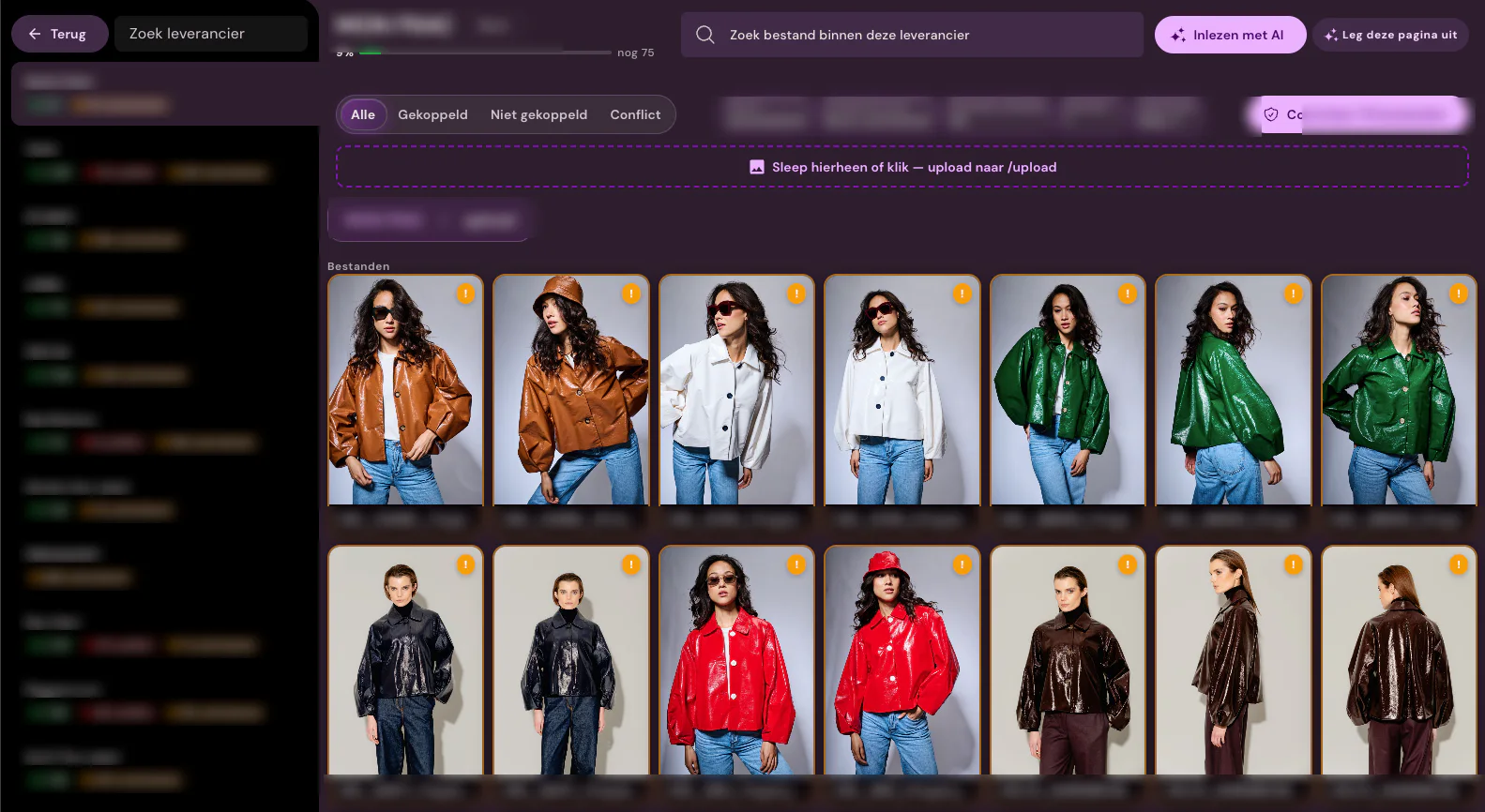
Image slots: which image goes where on the product page?
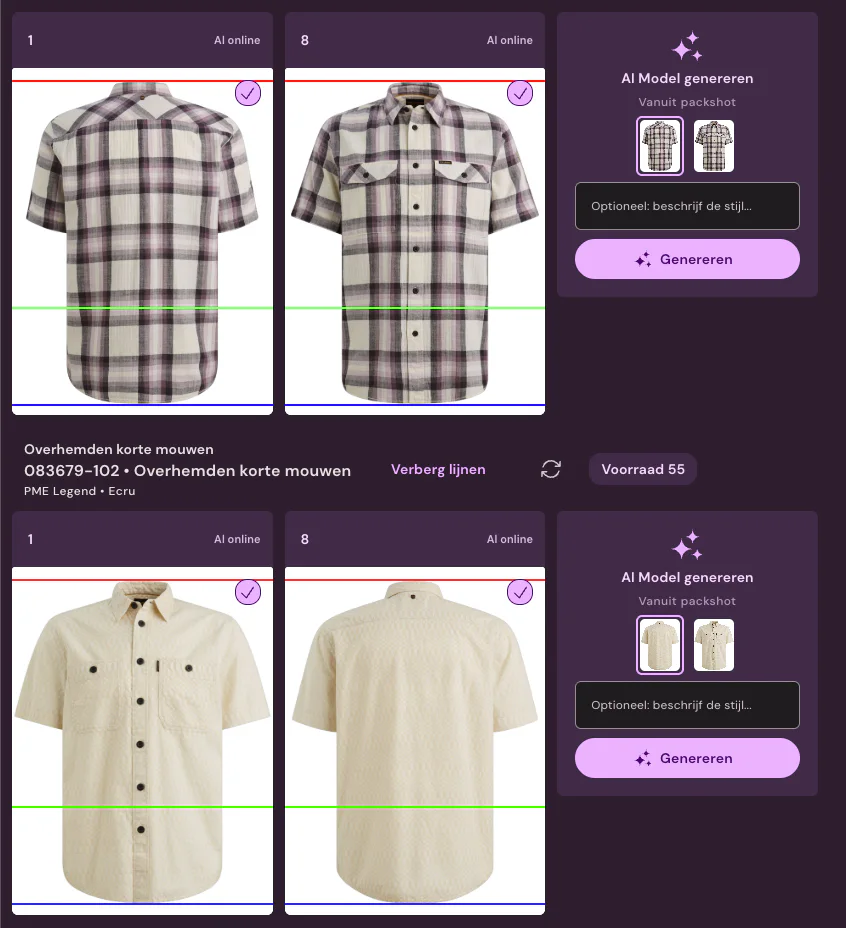
A product page (PDP) has a fixed order: usually the packshot or on-model front first, then the back, a detail, and possibly a lifestyle image. Suppliers do not follow that order, so you have to determine which image slot each image belongs in.
Sources like Fashion Cloud include how an image was created: on a model, on a model without a face, on a ghost mannequin, laid flat or folded, and from which angle. This lets the image automatically land in the right slot. One version wins per slot; other images remain visible as alternatives.
If you have both supplier images and your own studio photos, you need to choose which source takes priority per brand or slot. This prevents an item from going through the studio twice and keeps your own photography reserved for the items that really need it.
Edit in your own brand style
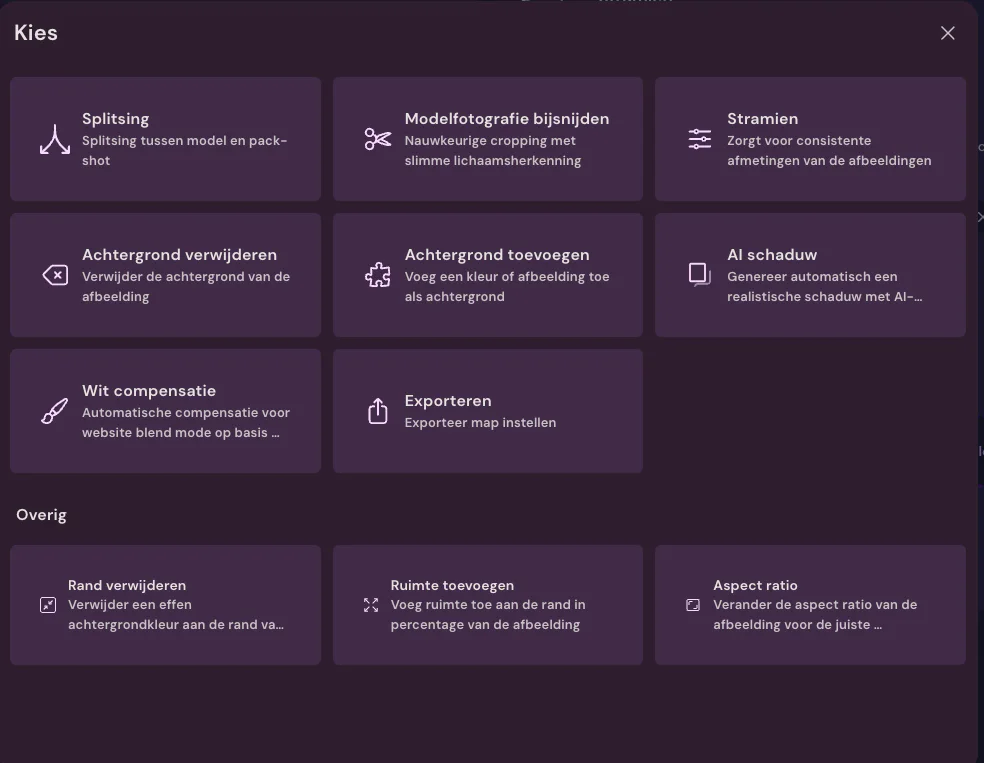
Supplier images shown side by side on a category page look messy when every brand uses different margins, backgrounds, and aspect ratios. The solution is a fixed template: a fixed top margin, bottom margin, and aspect ratio per item group, so all pants have the same height and all jackets have the same width.
This includes removing or replacing the background, adding a realistic shadow, color correction, mannequin removal, and cropping model photos with body recognition, so the face is cut off at the same height every time, for example. File names and web formats then follow your webshop rules.
With Photopilot, these standard edits and publishing are included in the subscription from €500 per month. Only generative AI, such as placing an AI model on a packshot, is billed per use.
Publishing: automatic or review first
Not every brand deserves the same level of trust. A regular supplier with consistent packshots can go straight to the webshop, while you may want to review a new brand or a new collection first. Set this per brand or product group instead of per image.
Publishing happens through a webshop integration such as Shopware, Shopify, or WooCommerce, via FTP or SFTP to your image import, or to a DAM. It is important that any replaced or deleted image is also removed from the webshop; otherwise old photos stay online.
A second delivery from the same supplier becomes a new version. This lets you go back to an earlier image and see, per item, which source is live.
When automation is not the smarter choice
If you only have a few suppliers and a few hundred items per season, manually downloading and uploading is often perfectly manageable. A fixed integration only pays off with volume, many brands, or multiple drops per year.
Supplier images are also the same images your competitors use. For your bestsellers or your own label, your own photography or an AI campaign can help you stand out more. Use supplier images as a quick starting point, then add model images or atmosphere where it makes a difference.
Finally, always check whether you are allowed to use the images. With Fashion Cloud, brands manage those rights themselves; for separate deliveries, it is usually stated in the delivery terms.
Rule of thumb: automate as soon as you have more than a handful of suppliers or items are online without images for more than a few days.
How Photopilot does it
Photopilot connects Fashion Cloud, Stockbase, FTP, SFTP, uploads, ZIP archives, supplier portals through a Portal integration, and a brand's website through Web research. You can connect multiple channels for each supplier at the same time.
Everything comes together per item in a single overview, with the source, version, and publication status for each image slot. Reporting shows which items have been completed with supplier images and which still need studio work, a model photo, or AI editing.
Fashion Cloud also provides material and care instructions, so they can go straight into product copy and webshop filters.