
What you need
Fashion Cloud is a platform where brands make product images and product data available to their retailers. Shopware is your online store. There is no standard button that connects the two, so the integration runs through an intermediate layer that matches, edits, and publishes.
On the Fashion Cloud side, you need a retailer account with an API token. Brands decide for themselves whether to participate by granting you access in Fashion Cloud. On the Shopware side, create an integration under Settings, System, Integrations with an access key, secret key, and write permissions for products.
Your item file must also contain EAN codes per variant, usually from your POS system or ERP. Without an EAN, there is little to match reliably.
- Fashion Cloud retailer account with API token
- Rights for the brands you want to use
- Shopware integration with access key, secret key, and write permissions for products
- Items with an EAN for each variant and product numbers that exist in Shopware
Step 1: Retrieve and match by EAN
Every half hour, Photopilot reads which brands you are allowed to use and retrieves the products and images for those brands. A large initial import runs in batches and resumes where it left off after an interruption.
Each Fashion Cloud product is matched to a variant in your item file through the EAN (GTIN). The product’s color determines which color item the images belong to. If a barcode later moves to another item, the images move with it.
If a brand replaces a shoot in Fashion Cloud, the old images also disappear for you, except for images you uploaded yourself or deliberately locked. If a product temporarily comes back half empty from the API, that is not treated as a deletion.
Step 2: Image slots, order, and brand style
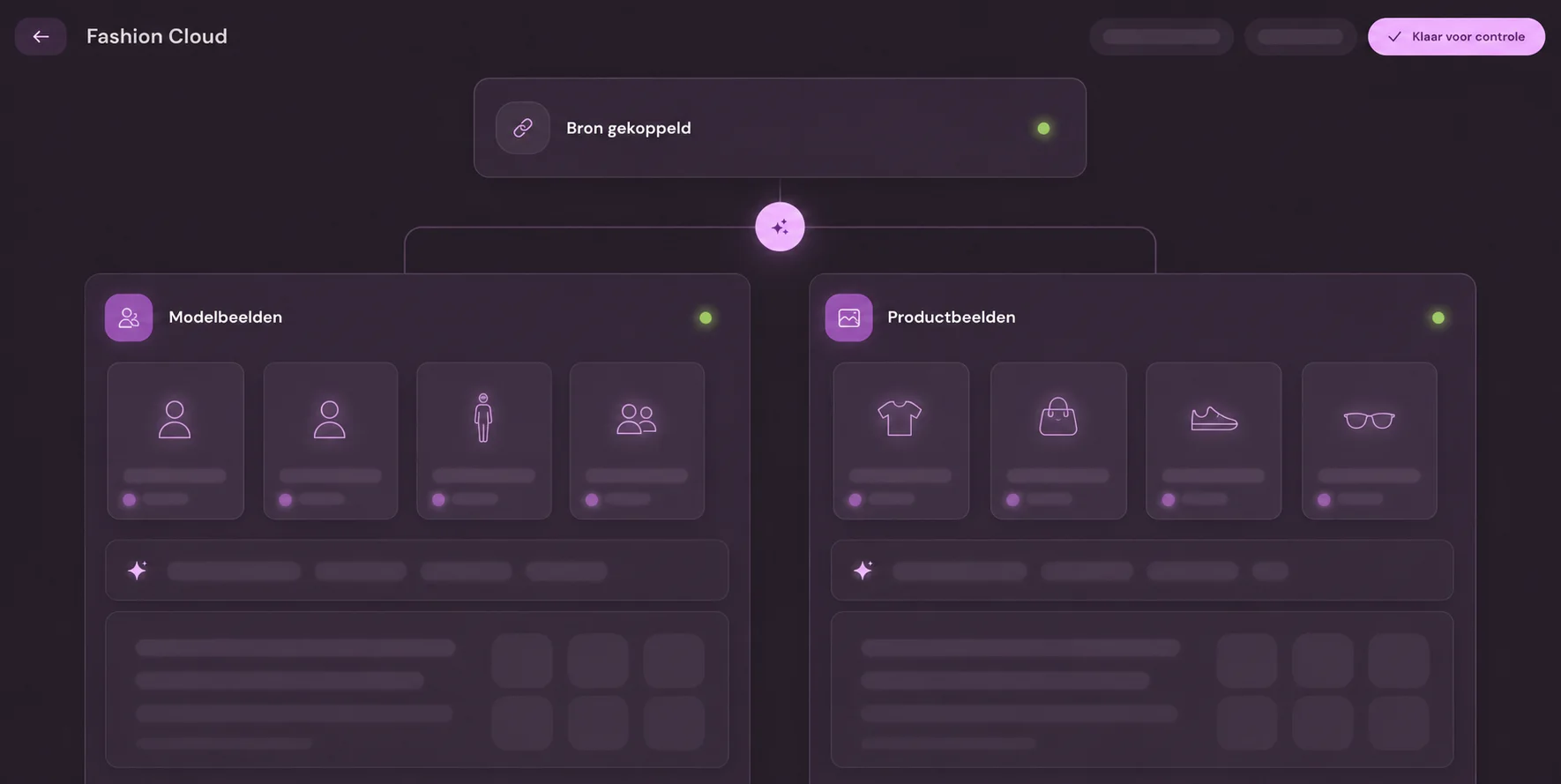
For each image, Fashion Cloud indicates how it was created: on a model, on a model without a face, on a ghost mannequin (hollow), laid flat or folded, and from which angle. Photopilot uses this to split model images and product images and assign each image to an image slot: front, back, detail, model, or set.
After that, your own image rules run: template by item group, background, shadow, color correction, and cropping. This makes brand images from Fashion Cloud look like your own product photography instead of a mix from fifty suppliers.
For each brand or product group, you choose whether images move through automatically or appear in a review step first. New brands are often put on review first and switched to automatic later.
Step 3: Images in Shopware, in the correct order
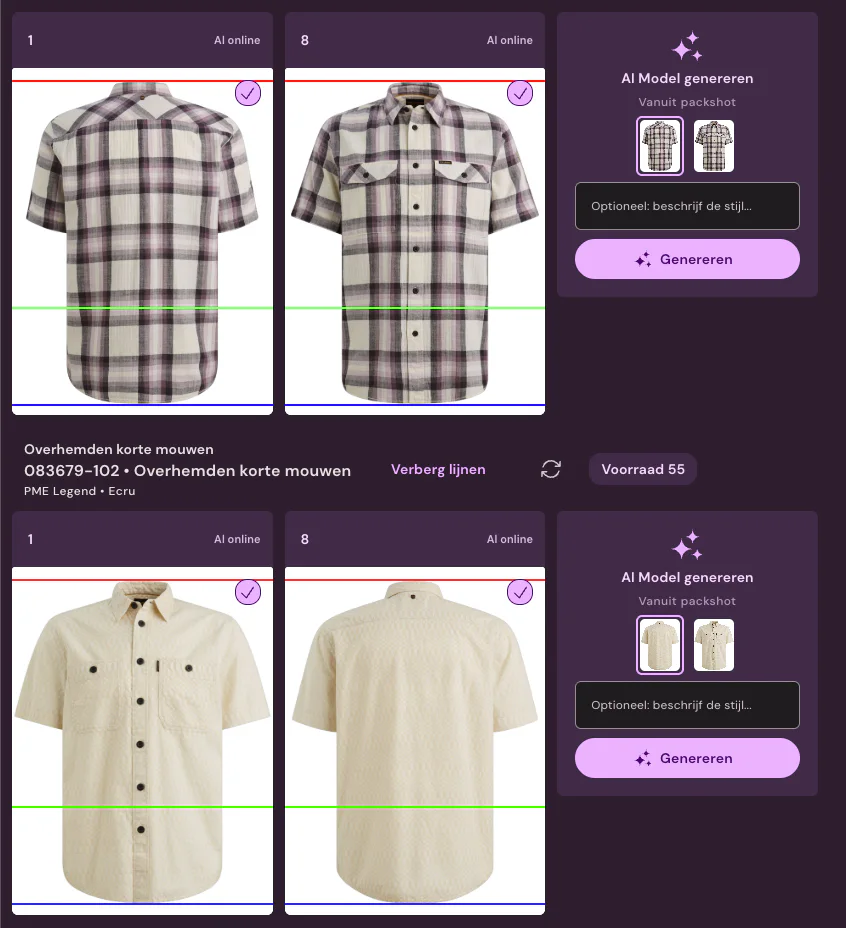
Photopilot adds images to the product as product media through the Admin API, or delivers them to your existing image import by FTP. Image slot 1 becomes position 1 in the Shopware gallery and therefore the main image; the other slots follow your order.
Photopilot marks the media it adds itself. This means a new version of the same slot replaces the previous Photopilot image instead of adding a second one next to it, while images you added manually in Shopware stay untouched. A shared media file from a duplicated product is not overwritten.
If a product is not in Shopware yet, for example because the import from your ERP runs later, Photopilot tries again later. As soon as the product appears, the push goes through after all.
Step 4: Texts, properties, and languages
In addition to images, Fashion Cloud also provides material and care instructions. Photopilot uses these for the product text and adds them to Shopware as the properties Material and Care Instructions, on the product page and, if you want, as filters. Material is added without a percentage, so the Cotton filter finds all items containing cotton; color and size remain unchanged.
For each store language, the description, SEO title (metaTitle), meta description (metaDescription), and optionally keywords and custom fields are written to the product. Photopilot only overwrites the product title if you choose to, because it often already comes from your ERP.
Photopilot reads languages and sales channels from Shopware itself and updates them every six hours. When you add a language, it automatically appears as an option.
| From Fashion Cloud | In Photopilot | In Shopware | Pace |
|---|---|---|---|
| Product images | Matched by EAN, by image slot, edited | Product media, slot 1 as the main image | after approval |
| Material | Composition per product | Material property, optional filter | every 15 minutes |
| Care instructions | Care symbols per item | Care instruction property, optional filter | every 15 minutes |
| Brand and item data | Source for AI product copy | description, metaTitle, metaDescription per language | within minutes |
| Brand rights | Which brands you see | not applicable | every half hour |
Check: what is actually live?
Shopware sometimes responds without an error message even though a field was not saved, for example when a field name does not exist. That is why Photopilot checks every two hours what is actually in the shop and flags fields that Shopware does not recognize.
Push logs per item show what was sent, what was already there, and what was skipped. Publishing can be direct or by batch, with manual retry. The content push to a live store is off by default: you turn it on yourself in the content settings, never automatically.
Tip: start with one brand set to review, monitor the push logs for a week, and then switch each brand to automatic one by one.
When this connection is not the smartest route
If you only use a few Fashion Cloud brands and do not edit the images, downloading from Fashion Cloud and running a simple image import into Shopware may be enough. However, you will miss out on your own crop, brand-by-brand control, and the connection with texts and filters.
Even if your item file does not have reliable EAN codes, it is worth getting your master data in order first. Every integration depends on that key.