
What Shop the Look in Shopware actually is
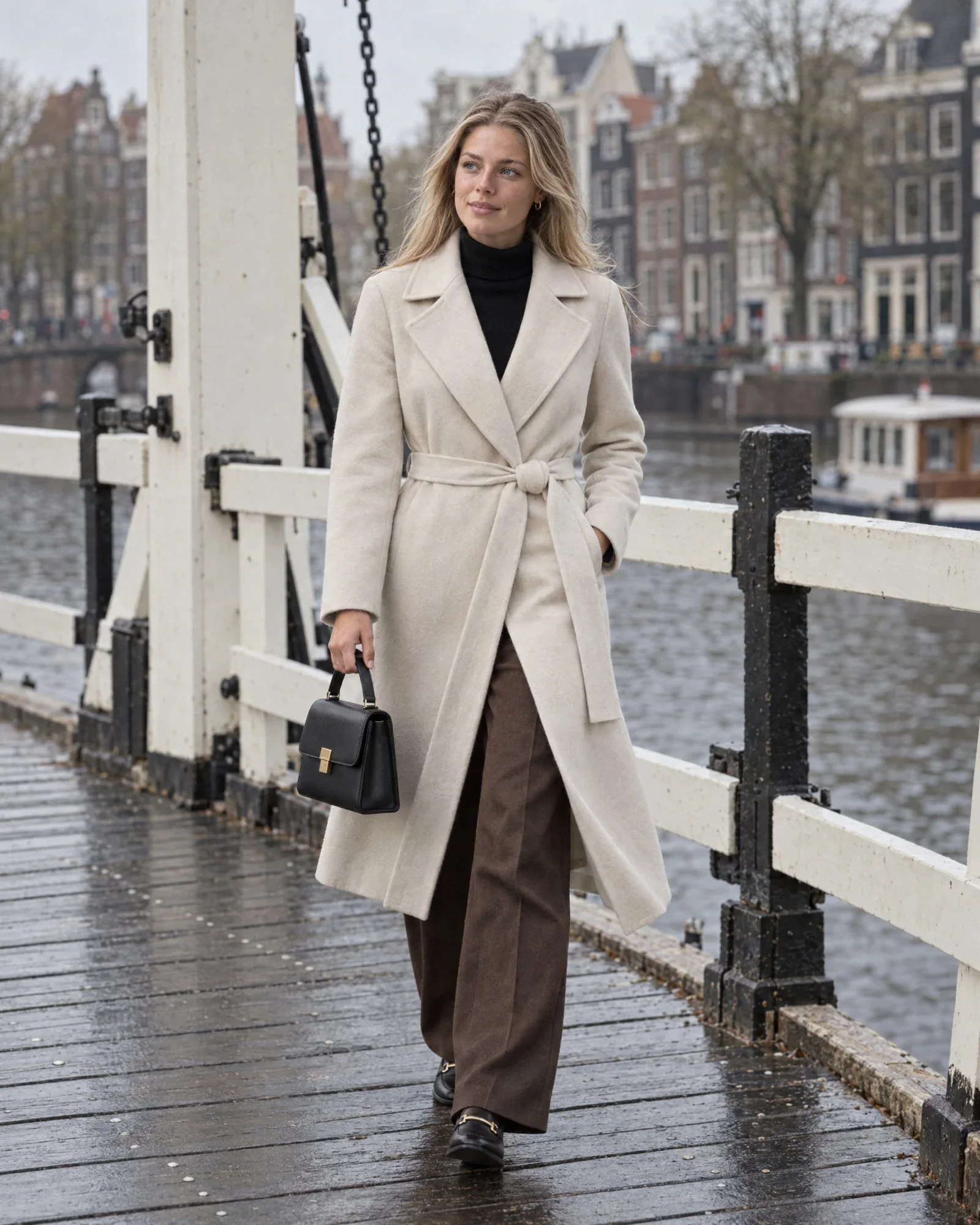
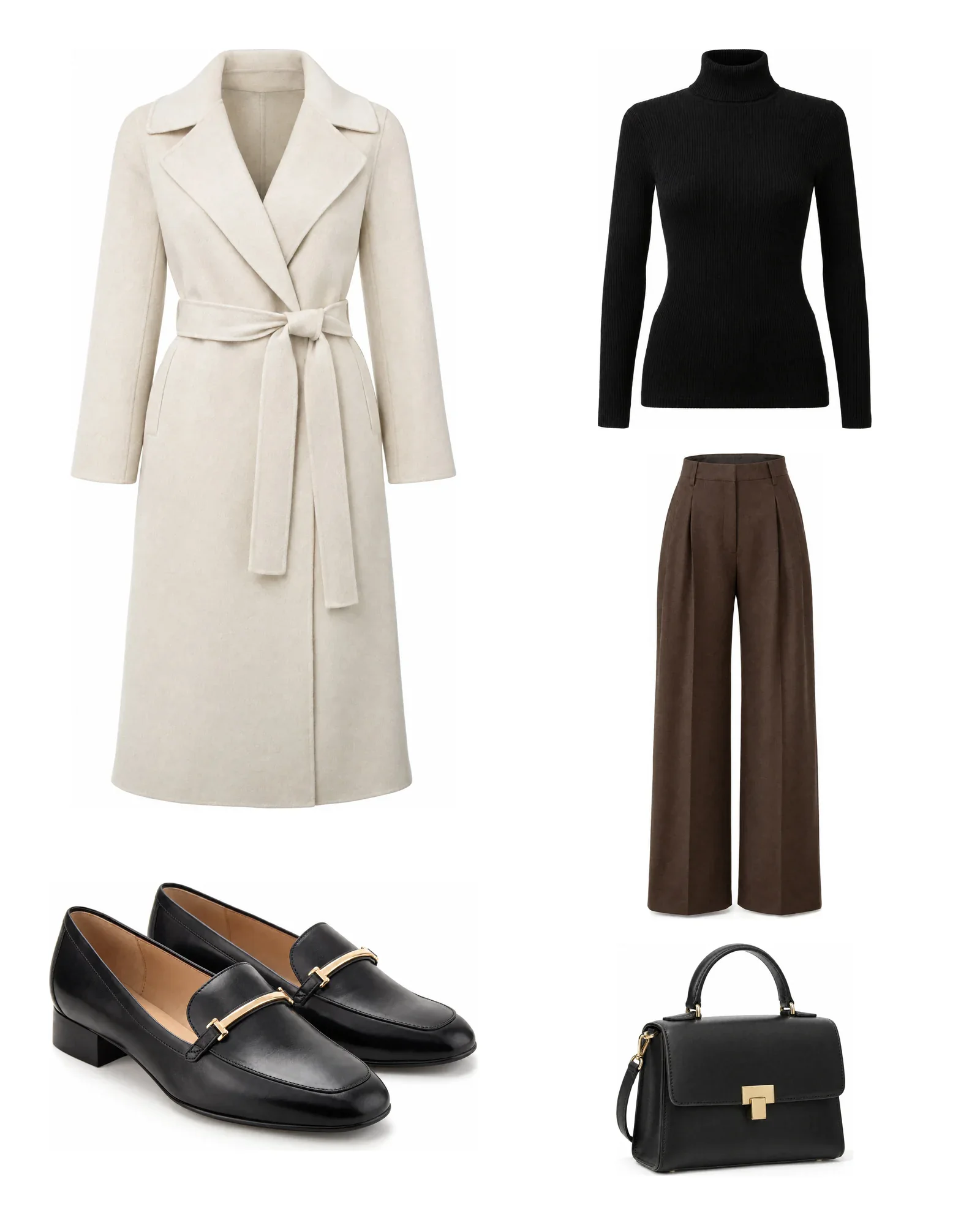
Shop the Look means that on the product detail page (PDP) for a pair of pants, customers can also see and buy the jacket, sweater, and shoes from the same photo. It is a form of cross-sell, but curated: a stylist chose the combination, and the photo shows how it works together.
In Shopware 6, you set this up on a product’s Cross-Selling tab. There, you create a group, for example Shop the Look or Combine with, and choose between a dynamic product group or manual assignment. For a look, you want manual assignment: exactly these products, in this order. The default theme shows each active group as a tab with a product slider.
The hard part is the maintenance burden. A look with four items requires four product pages with three assignments each, and with a hundred looks per season that adds up to hundreds of manual actions. That is why it pays to record the look once and let the rest follow automatically.
| Approach | How it works | Suitable for |
|---|---|---|
| Dynamic product group | Rule in Shopware, such as the same category | General suggestions, not a real look |
| Manual assignment | Choose the other items per product | A few looks per season |
| Set relationships via the Admin API | Create the look once as a set; export fills every product | Dozens to hundreds of looks |
Step 1: save the look as a set
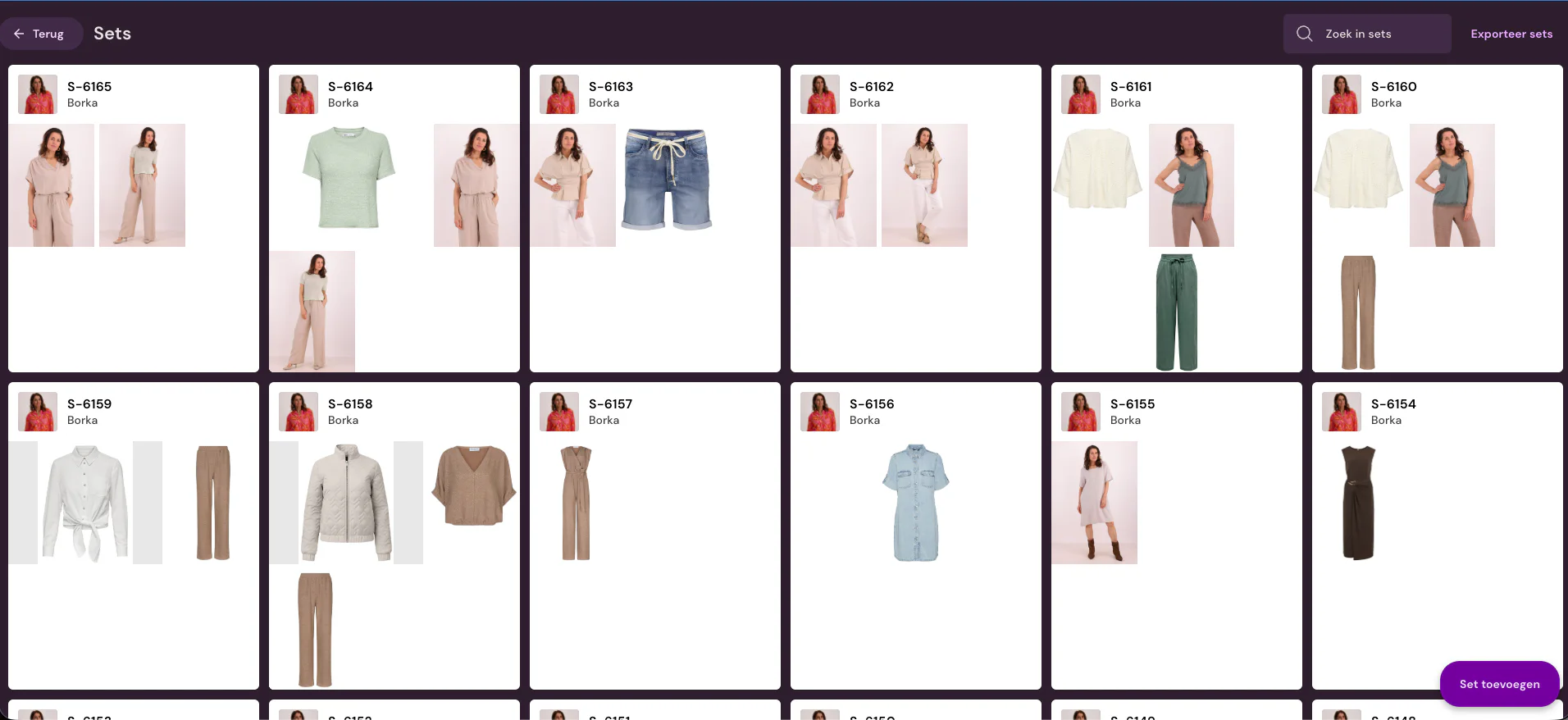
In Photopilot, you build a look as a set: you scan the barcodes or search by item number, choose the size for each item, and link a model. The set gets its own number. For each item, you use Maak foto to indicate whether it is the main item being photographed in this look; accessories can be part of the set without getting their own photo.
Then you print the set label: a sheet with the set number as a barcode, the model, and the items with their sizes. That label hangs on the rack with the clothing, so the stylist and photographer know exactly what belongs together and which size the model should wear.
Photopilot can also suggest new outfits from your collection. The stylist keeps final control: you accept, swap, or refine each suggestion yourself.
Step 2: photograph the look in the studio
During the shoot, you scan the set label or one product from the set in Photopilot Studio. The photos are then assigned directly to the set and the products, without renaming files afterward. If you use StyleShoots, OrbitVu, or Capture One, the photos come in through a shared folder and end up in the same place.
After the shoot, you select the best images for each item. They get an image slot, go through your standard edits such as crop, background, and color correction, and are published to Shopware. At that point, Photopilot also knows that the set has a published photo, which triggers the export of the set relationships.
Or: an AI shoot based on the look
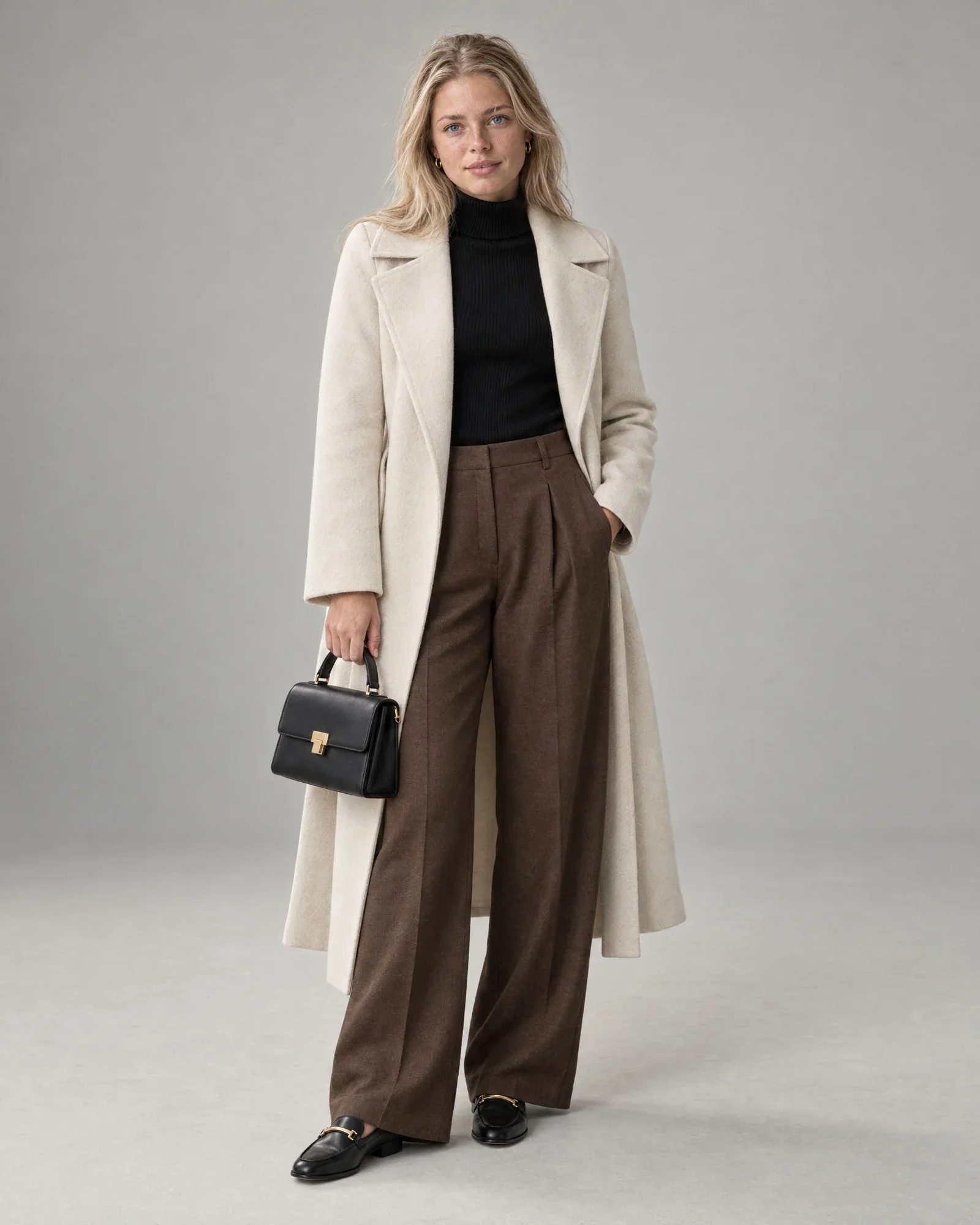
If you do not have a studio or time for a shoot, the same set can be the basis for Shop the Look with AI. One front photo per item is enough, whether it is a packshot or a supplier image. If your online store layout requires a back view, add the back as well.
You choose your own AI model or a free AI model and a background: your studio, a scene, or a background you describe. Beforehand, you see a shot list with the item, view, and pose for each photo; a new proposal costs nothing. The shoot delivers product photos per item and look photos of the full outfit.
You pay per generated photo, €0.05 – €0.21 in the queue, and see the price before you start. The shoot is often ready within an hour. Each AI photo shows a set label, so you can see which set it comes from and regenerate it with one tap.
Step 3: send set relationships to Shopware as Cross-Selling
In Photopilot’s Shopware settings, you enter the Cross-Selling group name once, for example Shop the Look. For every photographed item, Photopilot looks up that group on the product. If it does not exist yet, Photopilot creates it as an active group with manual assignment.
The other items from the set are then added to that group as assigned products, in the order of the set. This means the pants get the jacket, sweater, and shoes, and the jacket gets the pants, sweater, and shoes. Any item that is not yet in Shopware is skipped and clearly reported.
As soon as a set photo is published, Photopilot creates an export batch and sends it automatically via the Admin API. Unchanged relationships are skipped, and for each item, the push log shows what was there before and what is new. If you prefer to import it yourself, the same export is available as a CSV with the product number and assigned products.
| Component | Where in Shopware | Source in Photopilot |
|---|---|---|
| Product photos | Product media in fixed positions | Studio or AI shoot, per product |
| Look relationship | Cross-selling group with manual assignment | Items in the set |
| Model size | A field you choose, such as a custom field | Model and size in the set |
| Description and SEO copy | Product translations per language | AI product copy, after approval |
Bonus: model size on the product page
Because the set knows which model is wearing which size, Photopilot can also send a sentence like Our model is 180 cm and wears size M to a Shopware field. You set up which field that is once, for example a custom field that your theme displays on the product page.
This helps customers choose the right size and reduces returns. If no size has been recorded for the item, Photopilot uses the model’s default size for that item group; otherwise, it skips the text instead of guessing.
Tip: give your Cross-Selling group a recognizable name, such as Shop the Look, and keep a different name for manually managed groups. Photopilot only replaces the products in the group with the name you configure.
When this is not the smartest route
If you only have a handful of looks per season, manual assignment in the Shopware admin is perfectly manageable. And if you mainly want general suggestions such as more from this category, a dynamic product group in Shopware is simpler than maintaining sets.
If your theme does not show Cross-Selling on the product page, or if you have your own Shop the Look block that gets its data from somewhere else, first check what the theme expects. The same set relationships can also be included as a webshop Excel file or CSV, and for Shopify and WooCommerce they are sent as complementary products and cross-sells.