
Why supplier images do not automatically appear in Shopify
Fashion Cloud is the platform where brands make images and product data available to retailers; Stockbase provides supplier product images by EAN. Both are sources. Shopify has no built-in way to retrieve those images and assign them to the right product, so without an integration you download and upload them product by product in the Shopify admin.
That manual work is not just slow. The order in the gallery differs from one team member to another, alt text is left empty or becomes a file name, and every brand looks different on your collection page. With a new season of hundreds of items, this quickly gets out of hand.
An integration solves three things: matching (which image belongs to which product), editing (one consistent look), and publishing (in the right place, with copy included). Photopilot does all three and writes directly to Shopify, as well as to WooCommerce and BigCommerce.
Step 1: connect sources and match by barcode
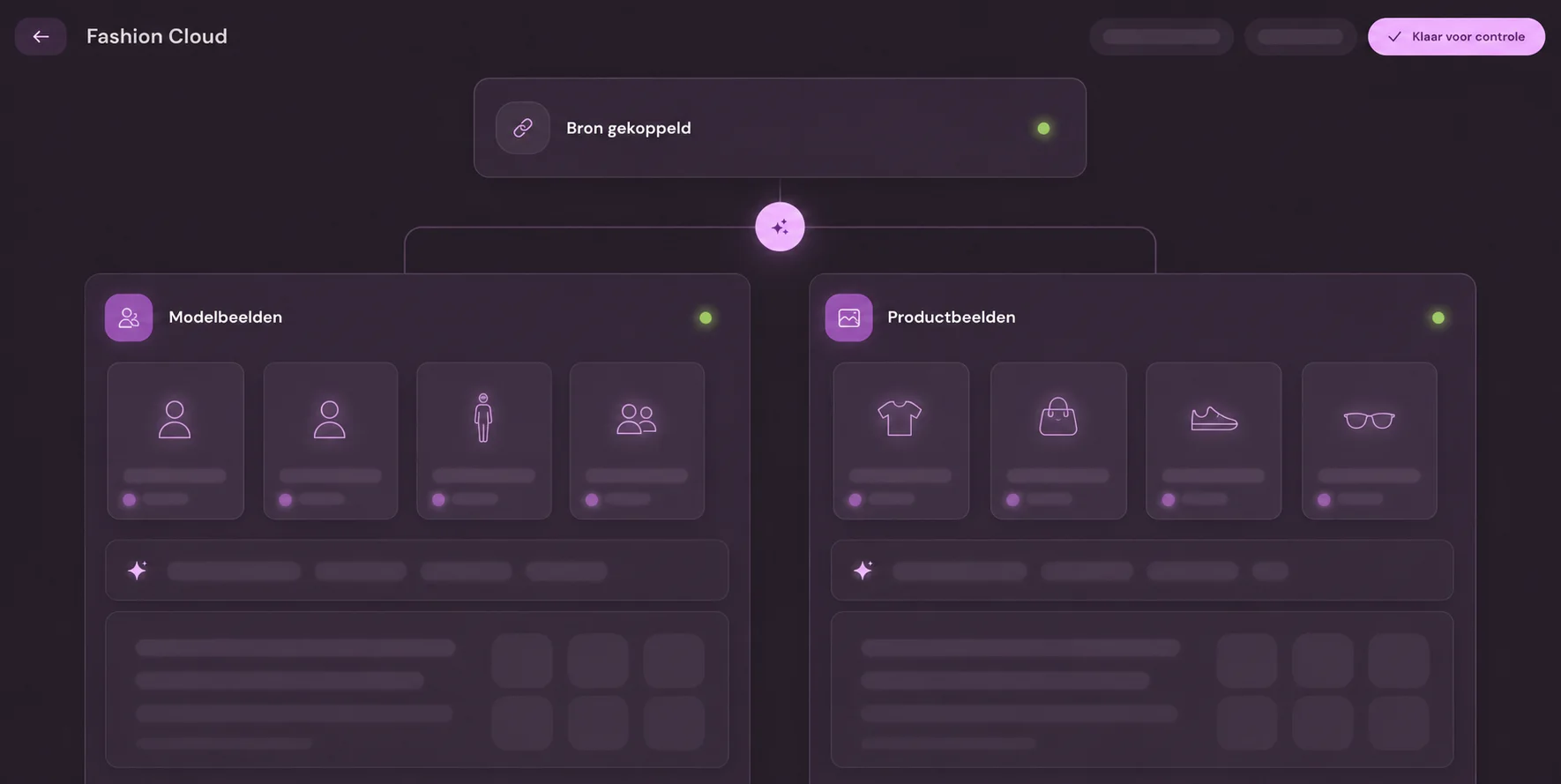
For Fashion Cloud, you give Photopilot the API token for your retailer account; every half hour, new images come in from the brands that have granted you rights. For Stockbase, your username and password are enough; new images come in every hour. Both sources link their images to your products using the EAN (GTIN).
On the Shopify side, Photopilot reads your products with variants, SKUs, and barcodes. The barcode field for your Shopify variants is therefore the key requirement: if it contains the EAN, the supplier image will automatically find the right product and the right color.
If barcodes are missing in Shopify, Photopilot can also match by SKU, as long as it matches your item file. A quick check of your master data before you start prevents a lot of loose ends.
Step 2: one consistent look for every brand
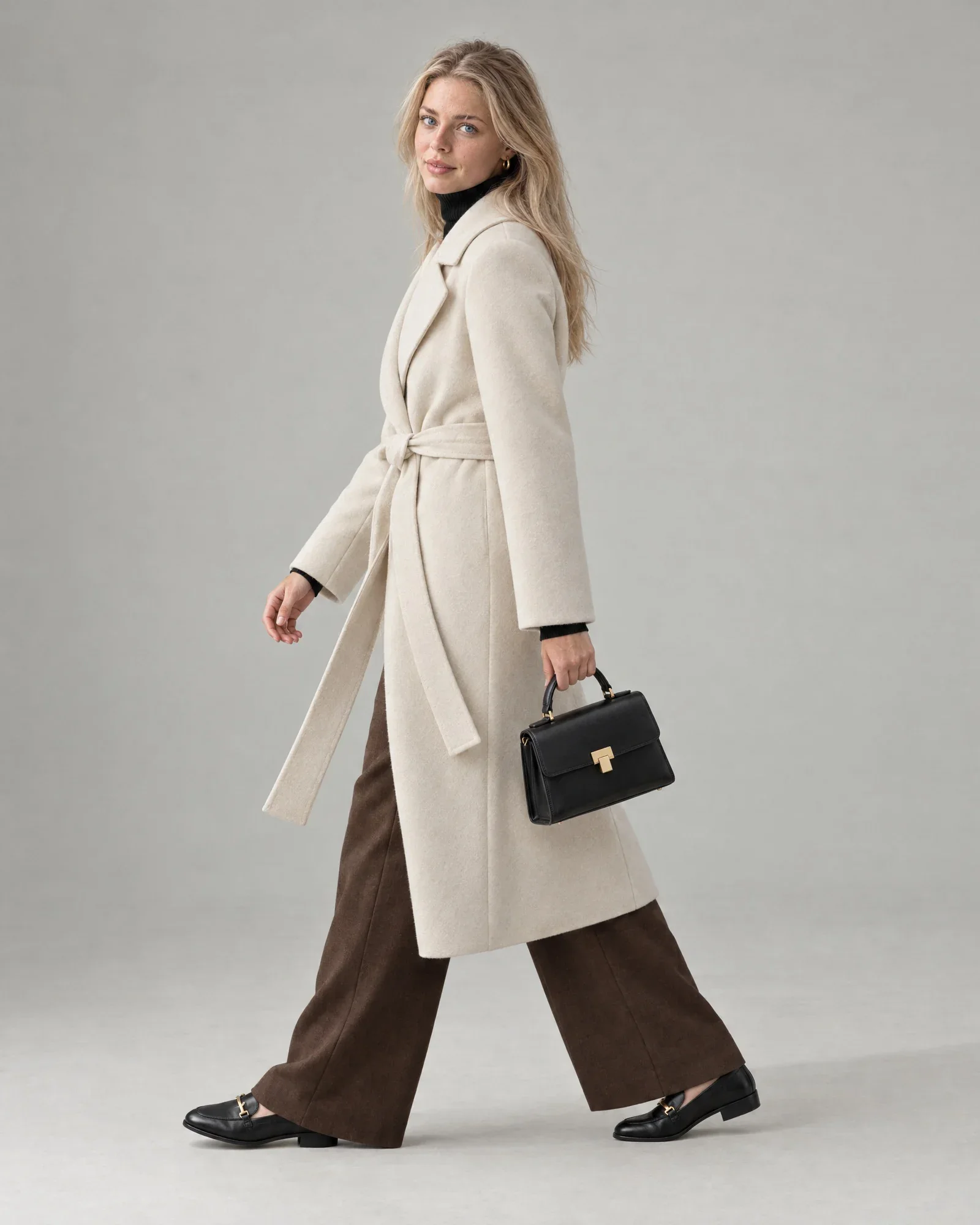
Supplier images come in every format imaginable: on white, on gray, tightly cropped, or with generous margins. Photopilot standardizes them per item group with the same crop, background, shadow, and color correction. Those standard edits and publishing are included in the monthly plan, starting at €500 per month.
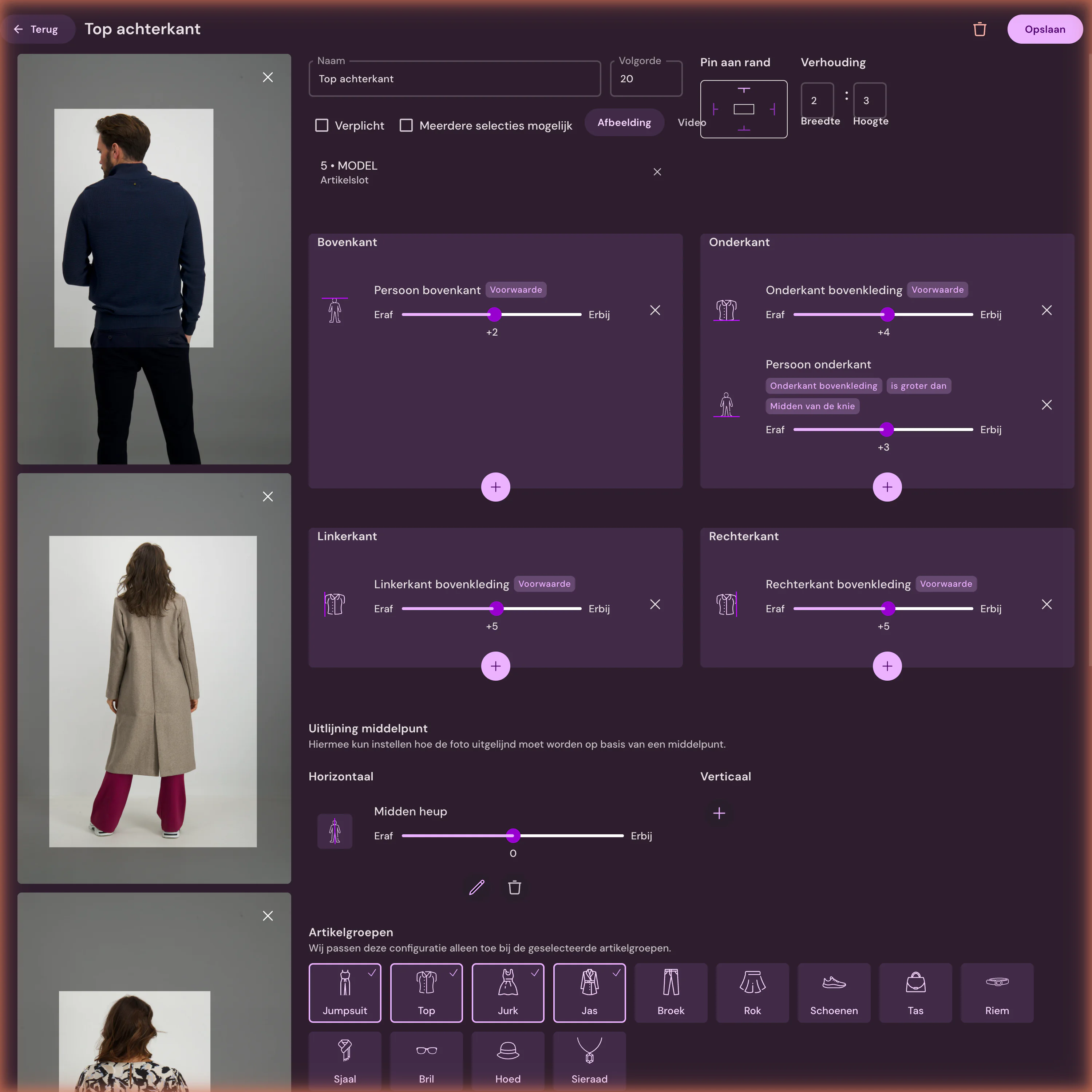
Each image gets an image slot, such as front, back, detail, or model. These slots will determine the order in Shopify. No model photo? Photopilot creates one with an AI model based on the packshot, for €0.05 – €0.21 per photo in the queue and often ready within an hour.
Choose per brand or product group whether images go to review first or continue via autopilot. You usually put new brands on review first.
Step 3: product media, order, and alt text
After approval, Photopilot adds the image to the product media via the Admin API and moves it to the position for its image slot: slot 1 becomes the first image and therefore the thumbnail on your collection page. If there was already an image in that position, Photopilot only removes it after the new image is in place, so the product is never briefly left without a photo.
Note: in Shopify, Photopilot replaces the image in that position, even if you uploaded it yourself. If you want to keep your own images, such as a lifestyle image or video, place them in positions Photopilot does not use, for example at the end.
Each image gets alt text with the product name, brand, and color, for example wool cable-knit sweater ecru, instead of an SKU or file name. This helps Google Images and screen readers. If no product name is known, Photopilot falls back to the item number.
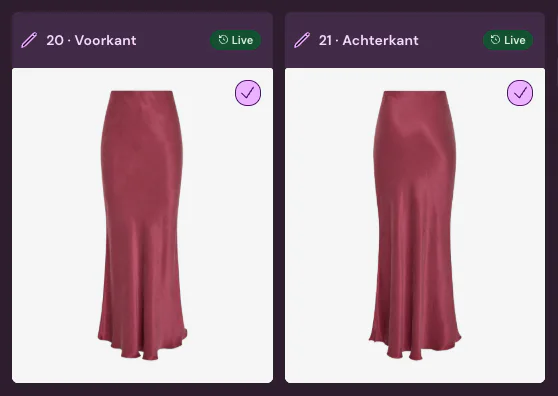
If a single Shopify product has multiple colors, Photopilot fills the gallery from one main color. Photopilot does not set variant images per color; many fashion stores therefore use one Shopify product per color.
Step 4: copy, SEO fields, and metafields
A supplier image alone does not make a complete product detail page (PDP). Based on the image and product data, Photopilot writes a product title and description and fills in the product's SEO title and meta description, the fields under Search engine listing in the Shopify admin. You choose which fields Photopilot may fill in; anything you do not enable is left untouched.
Additional text, such as fit or fabric description, is written to product metafields in a namespace you choose. Photopilot can write material and care instructions as metafields, with a readable composition such as 54% wool, 44% polyester, and as a list you can use as a filter in the Search & Discovery app.
Photopilot can also fill the product handle, and therefore the URL, but you should only enable this for new products. Changing the handle of a product that is already indexed by Google will cost you visitors unless you use a redirect.
| In Shopify | What goes in | Source |
|---|---|---|
| Product media | Edited images in a fixed position | Fashion Cloud, Stockbase, studio, or AI |
| Alt text per image | Product name, brand, and color | Article data |
| Title and description | AI product copy, after approval | Images and item data |
| SEO title and meta description | Product search engine listing | AI text |
| Metafields | Extra fields, material, and care instructions | AI text and care label |
| Complementary products | Sets as cross-sell | Sets in Photopilot |
Cross-sell and review afterward
When you create sets or looks in Photopilot, they are included as complementary products in the metafield for Shopify’s Search & Discovery app. Themes with a complementary products block show them directly as a cross-sell, with no Liquid changes needed.
Images go through an export queue that handles traffic in Shopify; in most cases, an approved image appears in your store within a few minutes. Photopilot checks whether a product is active and whether copy is online, so your reporting shows which products still have no image, model photo, or description.
When another route is smarter
If you only sell a few brands and use supplier images as-is, a simple import app or manual upload may be cheaper. You will miss your own crop, the review per brand, and the texts, but for a small number of products that is often acceptable.
If you use per-color images within a single Shopify product and want to keep it that way, discuss this in advance: Photopilot fills the gallery per product, not the variant image per color. And if you do not have barcodes in Shopify or usable SKUs, clean up your master data first.