

What Stockbase does and does not supply
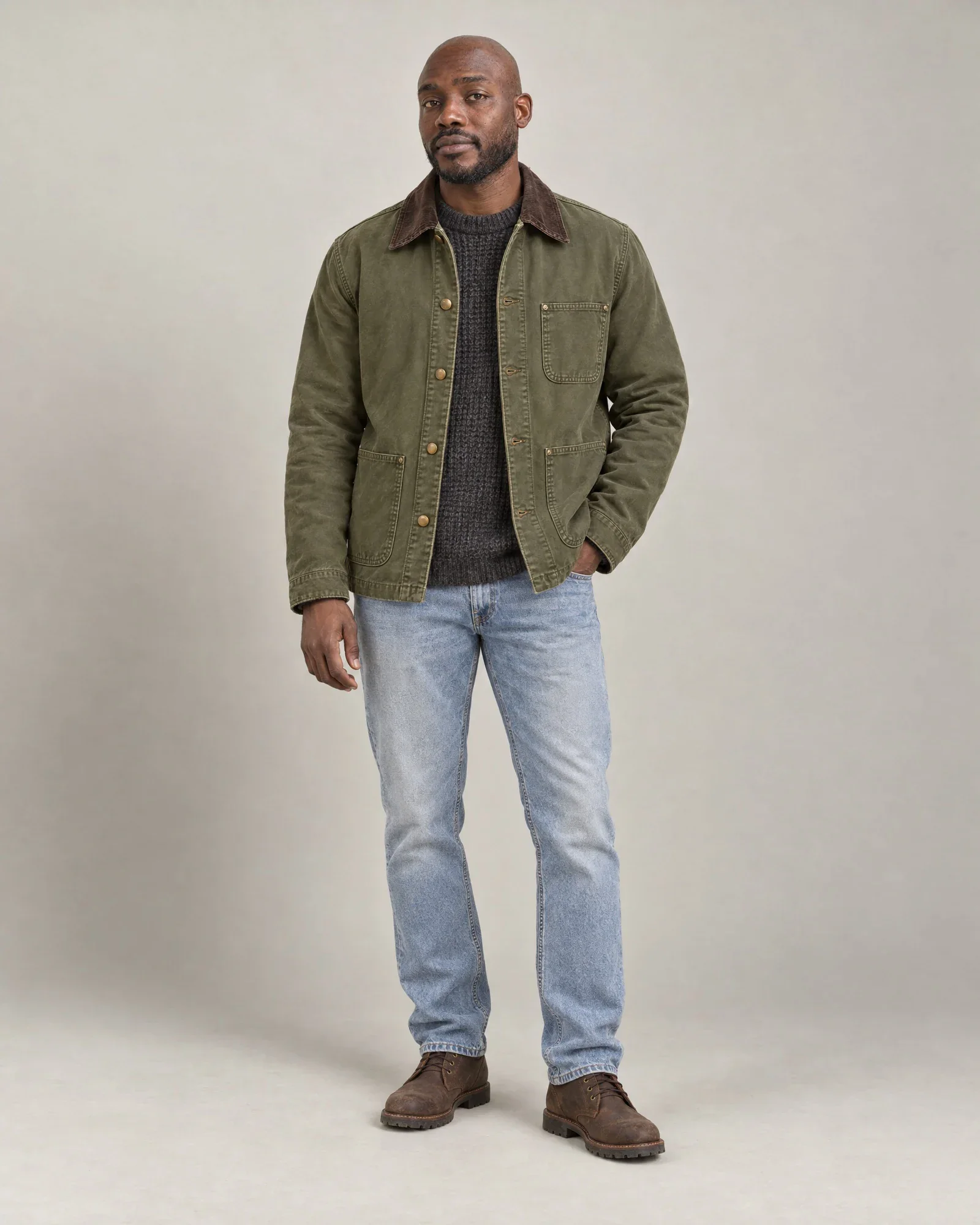
In the Netherlands, Stockbase is best known as a platform for inventory and product data between suppliers and retailers. For images, it works simply: for each EAN (the barcode, also known as GTIN), one or more product images are available, each with its own image number. These are usually supplier packshots, sometimes detail shots or on-model images.
The image connection does not give you ready-made product titles, descriptions, or attributes such as material and care instructions. Those come from your own item file, POS system, or ERP, or they are created based on the image and the care label. So do not expect Stockbase by itself to complete a product in Shopware.
Shopware 6 has no standard integration for Stockbase images. You can download images and upload them through an import or the Shopware admin, but with hundreds of items per season, that becomes manual work. An integration that matches, edits, and publishes them saves the most time.
| Component | From Stockbase? | Where it comes from otherwise |
|---|---|---|
| Product images per EAN | Yes | not applicable |
| Product title and description | No | Your own product data or AI product copy |
| SEO title and meta description | No | AI text per language, after approval |
| Material and care instructions | No | Care label recognition or your own master data |
| Model photos | Sometimes | Your own studio or AI model photo from the packshot |
What you need before you start
On the Stockbase side, you only need the username and password for your own Stockbase account. Photopilot uses them to request access tokens and renews them on time, so the integration does not stop when a token expires.
In Shopware, create an integration under Settings, System, Integrations with write permissions for products. Send the access key and secret key to Photopilot. An admin login can be used as a fallback, but it will stop working after a password change or when 2FA is enabled.
The most important part is in your own data: your item file must include the EAN for each size variant, and the product numbers must match those in Shopware. Without those two keys, nothing can be linked reliably.
- Stockbase username and password
- Shopware integration with access key, secret key, and write permissions for products
- Item file with an EAN for each size variant, usually from your POS system or ERP
- Product numbers that exist in Shopware
Step 1: retrieve images and match by EAN
Photopilot checks with Stockbase every hour to see which images are available. Each image is looked up in your item file via the EAN, down to the barcode of the size variant. This immediately shows which item and color the image belongs to, even if your item numbers are structured differently from the supplier's.
Photopilot recognizes images that have already come in by EAN and image URL and skips them. If several sizes of the same item use the same image, it is added to the item only once instead of once per size.
If an EAN is not in your assortment yet, or the item is not active, the image is not imported yet. As soon as the item exists, the next hourly run will pick up the image. This way, no one has to rename or sort files.
Step 2: brand style and image slots
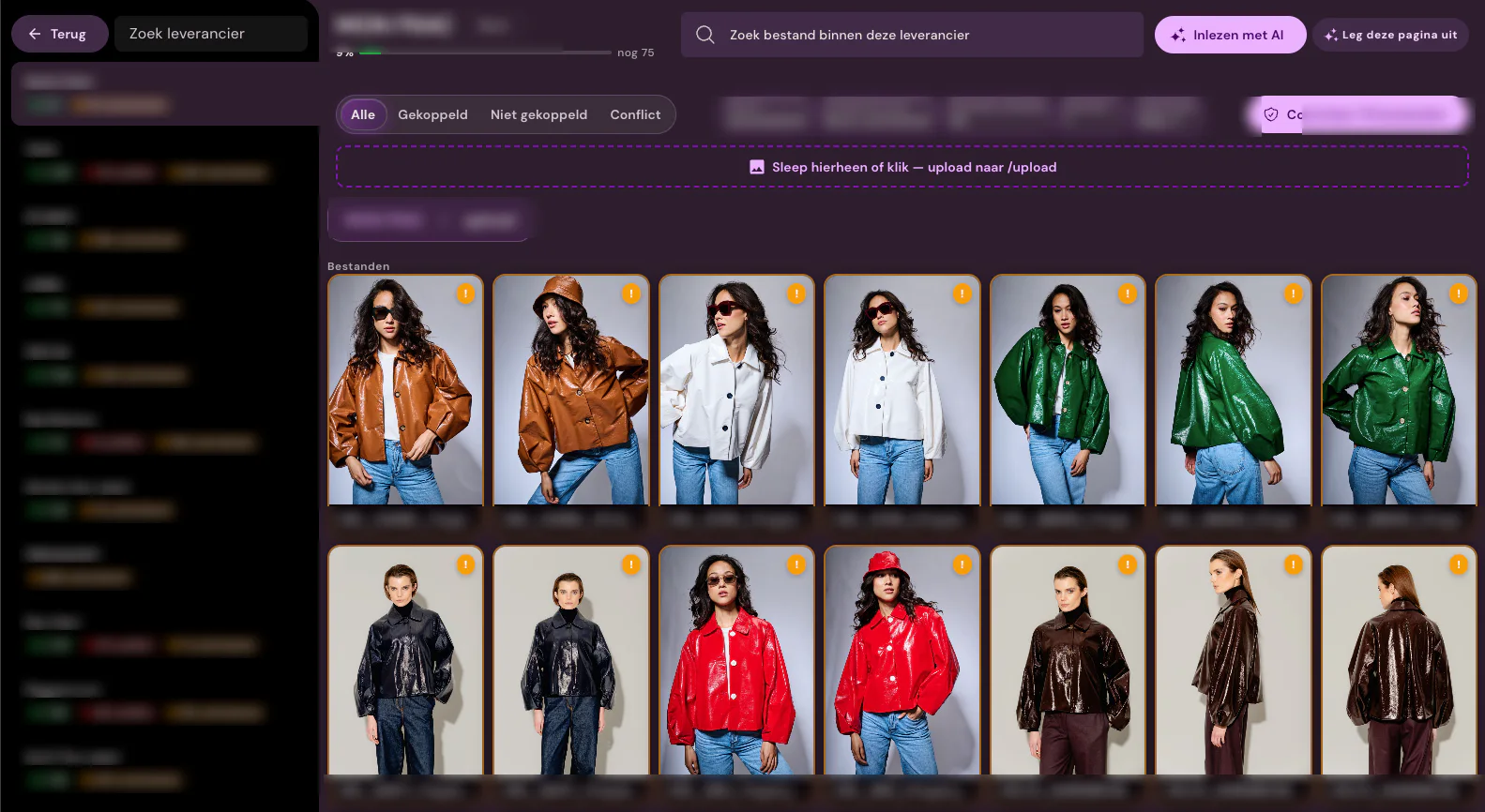
Stockbase images vary widely by supplier: one supplies images on white, another on gray, with small or very large margins. Photopilot converts them to your own image rules: background, layout per product group, shadow, color correction, and aspect ratio. These standard edits are included in the monthly plan, starting at €500 per month.
Each image gets an image slot, such as front, back, or detail. Image slot 1 will become the main image in Shopware. If the same item also comes from Fashion Cloud or your own studio, your rules per slot determine which version wins; the others remain visible as alternatives.
If you only have a flat packshot, you can turn it into a ghost mannequin image or an AI model photo. AI photos cost €0.05 – €0.21 per queued photo and are often ready within an hour. For each brand or product group, you choose whether images are processed automatically or sent for review first.
Step 3: images in the Shopware product gallery
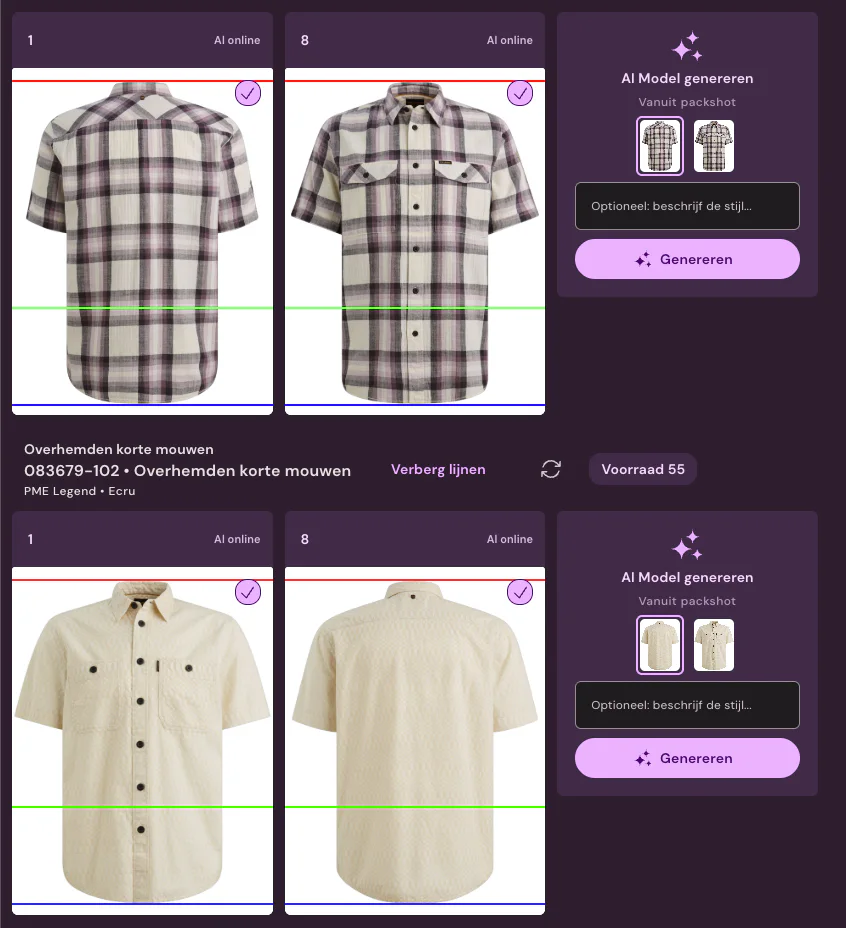
After approval, Photopilot adds the image to the product as product media via the Admin API. The product is found by product number; if images for a variant product are attached to the parent product, Photopilot falls back to the EAN. Image slot 1 becomes position 1 and therefore the main image; the other slots follow in your order.
Photopilot marks the media it places itself. A new version of the same slot therefore replaces the previous Photopilot image, while images you added to Shopware yourself stay in place. If you prefer to use your own image import, Photopilot delivers the files with fixed filenames via FTP or Azure.
If the product is not in Shopware yet, for example because the ERP import runs later, Photopilot tries again later. As soon as the product appears, the push continues.
Step 4: add copy and properties
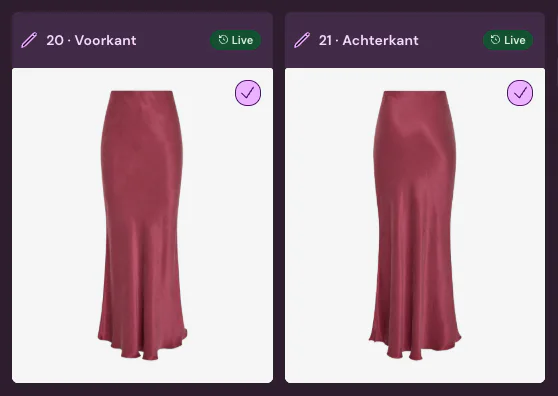
An image alone does not make a good product detail page (PDP). Based on the image and product data, Photopilot writes a description, SEO title (metaTitle), and meta description (metaDescription) for each language and, after approval, adds them to the product translations within minutes. Photopilot only overwrites the product title if you choose to.
Photopilot extracts material and care instructions from the care label or from your own master data and adds them to the product as the Shopware properties Material and Care instructions, optionally also as filters. Color and size remain unchanged.
Photopilot reads languages and sales channels from Shopware and updates them every six hours. That lets you see, for each language, which products already have copy and which do not.
| Step | What happens | Pace |
|---|---|---|
| Retrieve | New Stockbase images by EAN | every hour |
| Matching | EAN to item, color, and size variant | in the same round |
| Edit | Background, layout, shadow, color, image slot | after arrival |
| Publish | Product media in fixed positions via the Admin API | after approval or autopilot |
| Copy | Description, metaTitle, and metaDescription per language | within minutes of approval |
| Control | What is actually live in the shop | every 2 hours |
Review and go live
Shopware sometimes responds without an error message even though a field was not saved. That is why Photopilot checks every two hours what is actually in the shop. Push logs for each item show what was sent, what was already correct, and what was skipped, with a button to try again.
You enable publishing to your live shop yourself in the content settings, once you are happy with the first results. Until then, Photopilot only reads data, so you can review everything that is ready at your own pace.
Tip: start with one supplier set to review, monitor the push logs for a week, then move suppliers to autopilot one by one.
When this connection is not the smartest route
If you only get Stockbase images for a handful of items per season and you are happy with the supplier’s look, it is cheaper to download them and upload them to Shopware yourself. You will miss out on your own crop, supplier-level control, and the text, but for small volumes that may not be worth the cost.
If your item file does not have a reliable EAN for each size, it is still worth getting your master data in order first. Every image match, whether with Stockbase or Fashion Cloud, depends on that barcode.